
Schedule Creation for the Staff
Option 1: Specific Date
- Option 1: Click the icon "schedule."
- Option 2: Click the navigation or list icon.
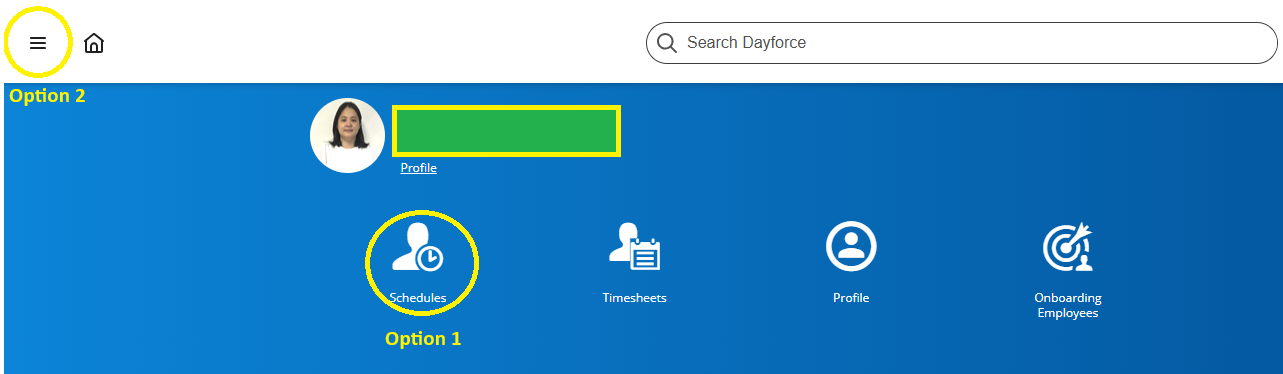
-
-
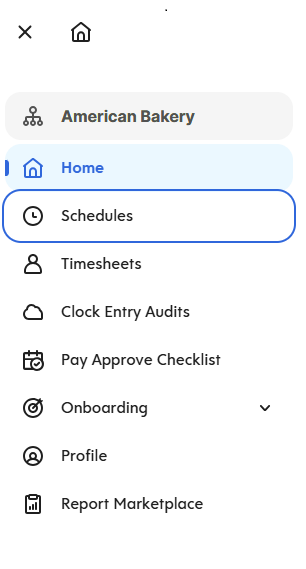
- For Option 2: after clicking the navigation icon, click "Schedules."
-
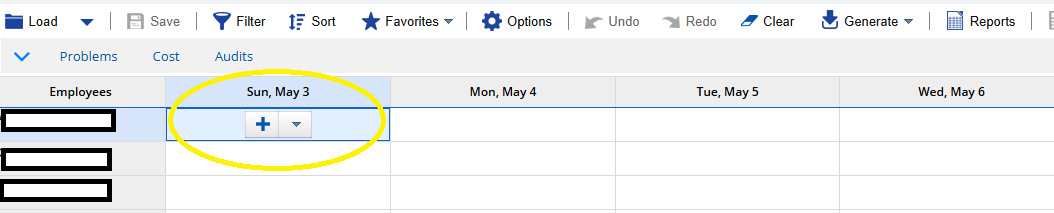
4. Employee Name, position, employee number will automatically appear on the screen.
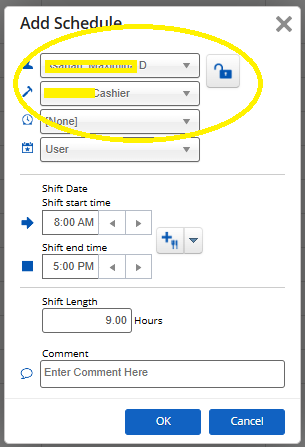
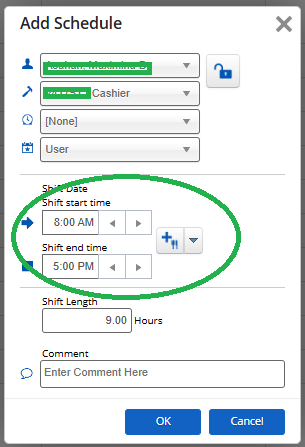
5. Input shift start time and end time.
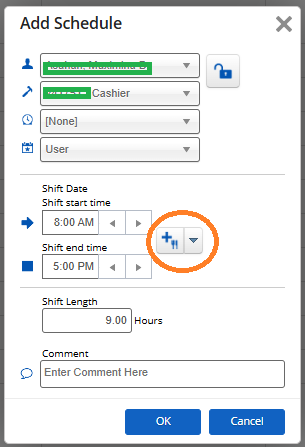
6. Click the "plus sign with the fork and knife" icon to add break time.
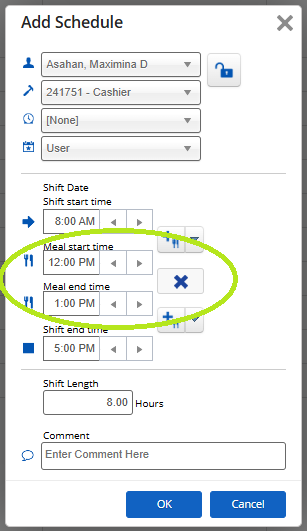
7. Input meal start time and meal end time and then click "ok." Shift length will automatically calculate once time has been inputted.
Option 2: Generate Weekly Schedule From Previous Week
- Go to "Schedules."
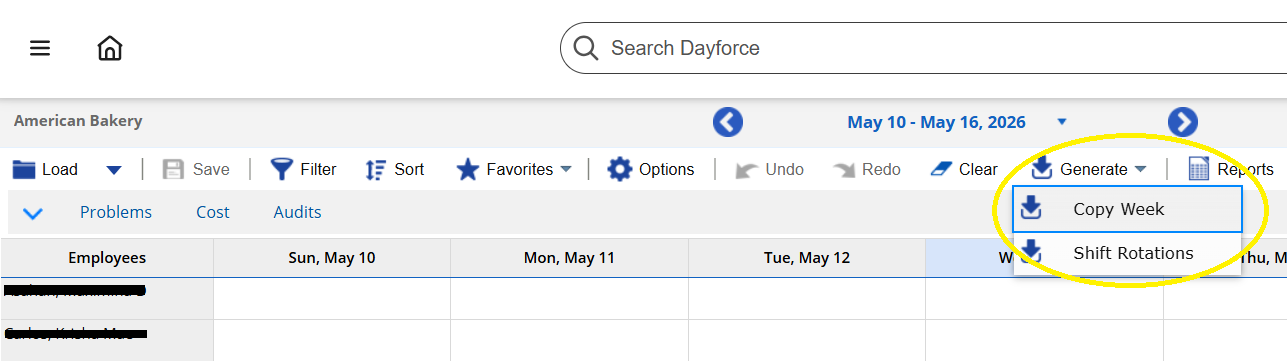
- Click the "Generate" dropdown list and choose "Copy Week".
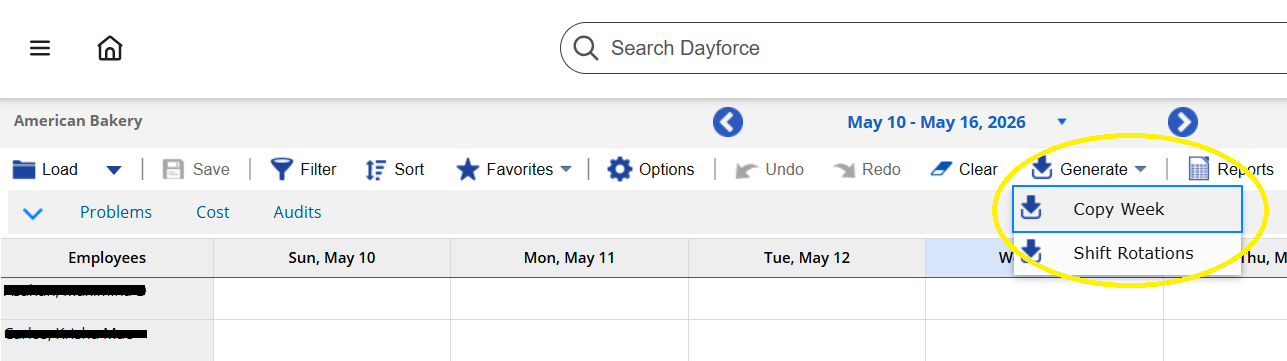
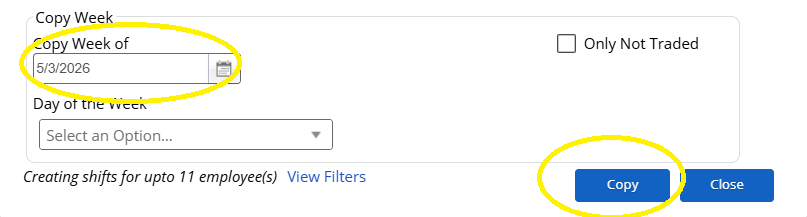
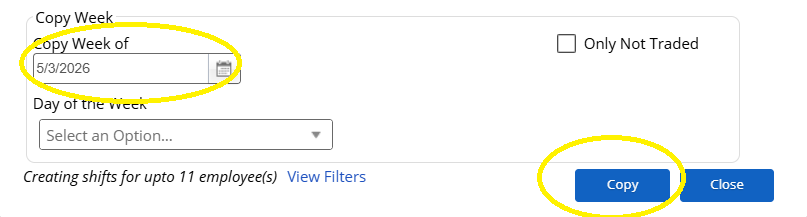
- Click the "calendar" button to choose the week that will be copied for the next schedule and then click "Copy."
- Schedule for the entire week will show on the screen.


No comments to display
No comments to display