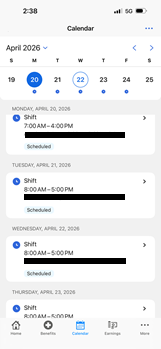
View Shifts / Schedule
Option 1: Using Laptop / Desktop
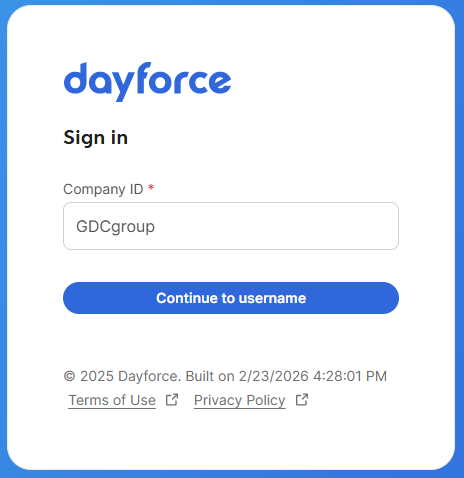
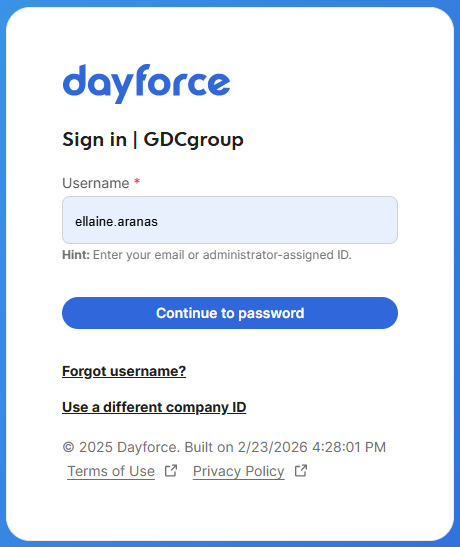
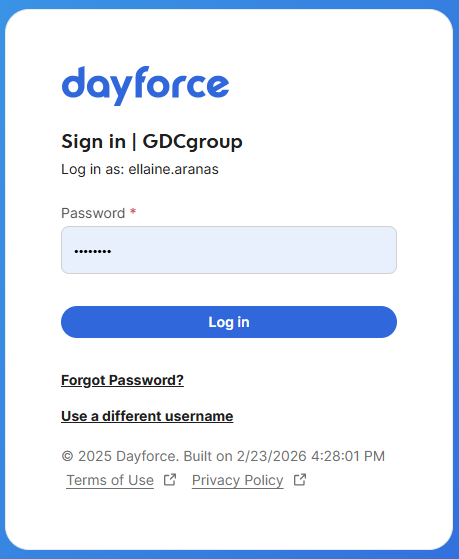
1. Log in to Dayforce at MyDayForce Login
|
Company ID: GDCgroup
|
Username: Firstname.Lastname
|
Password:
|
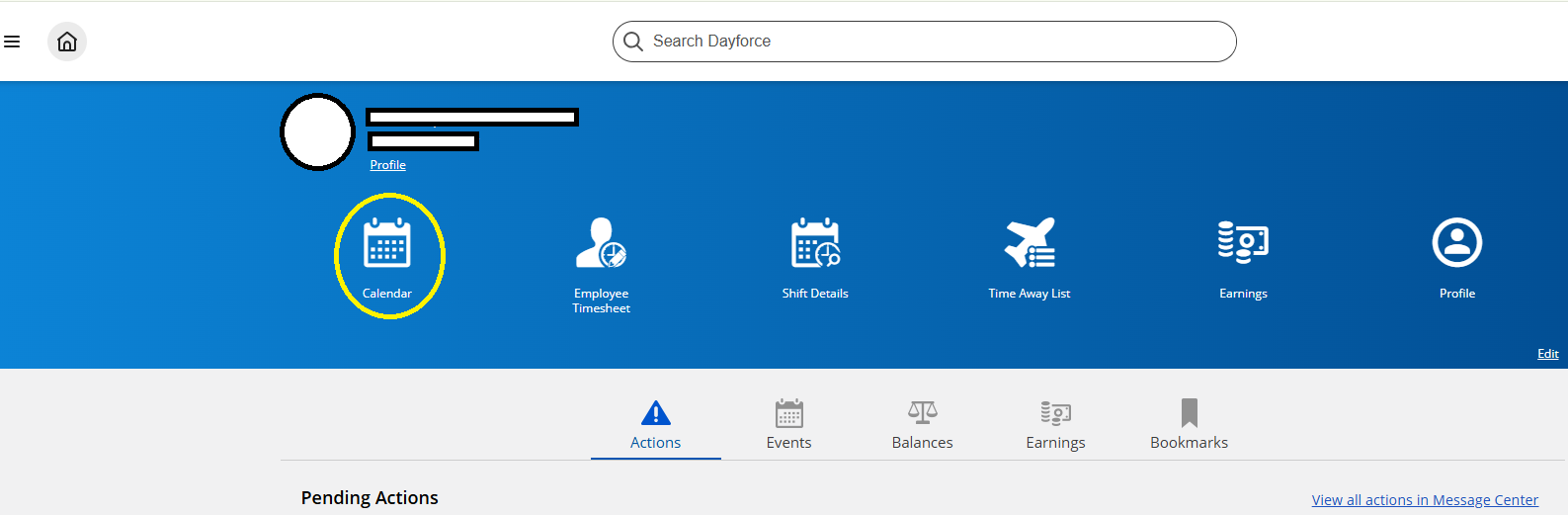
2. Click the "calendar" icon.
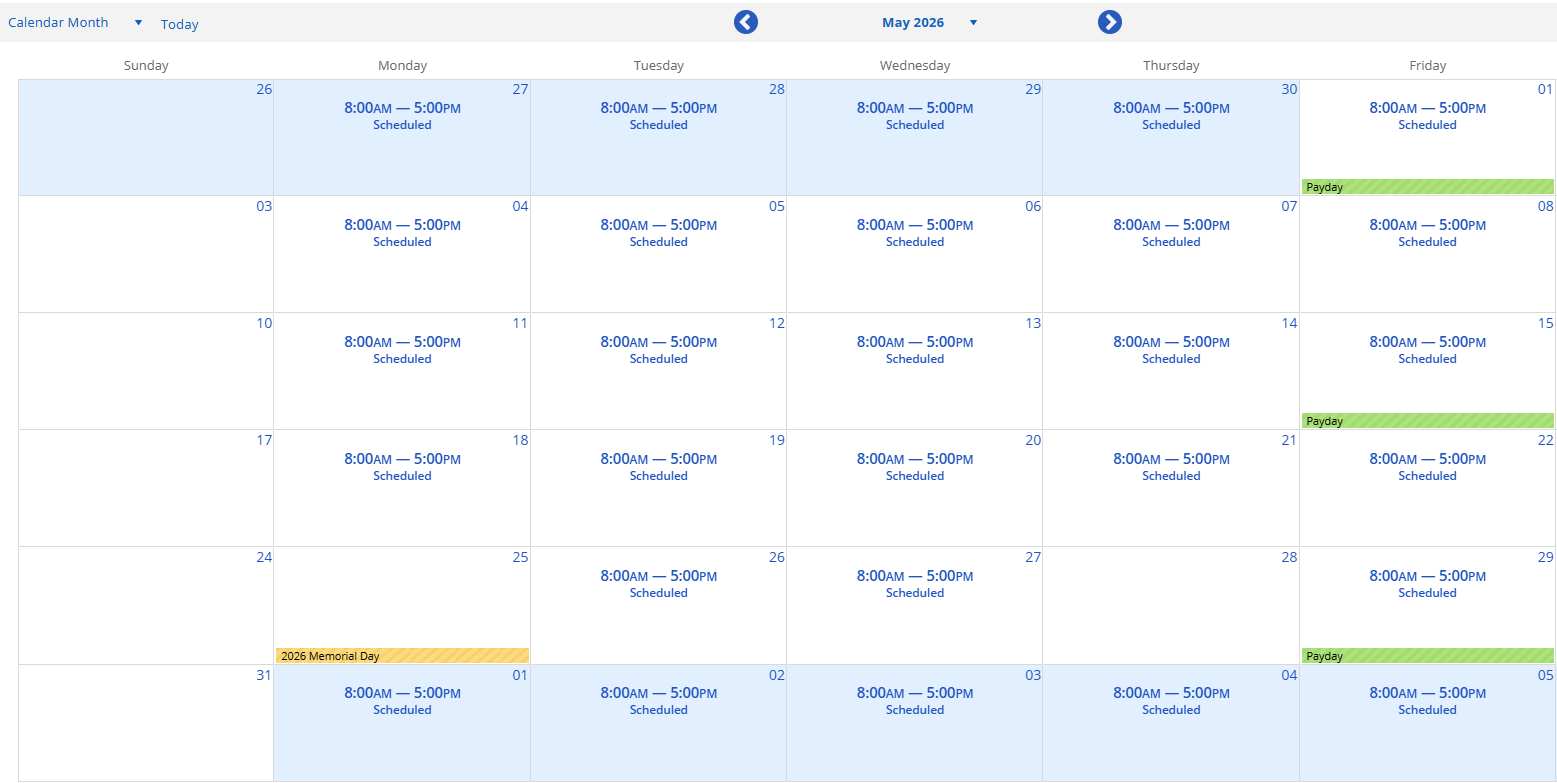
3. Calendar with the schedule will appear on the screen for the chosenspecified month.
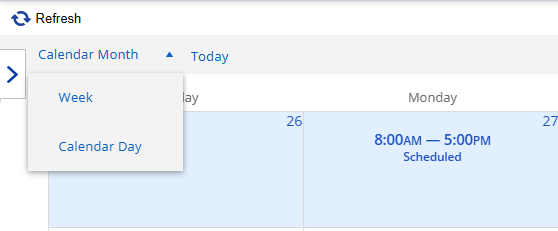
a. To view by week, Clickclick the Calendar dropdown list and choose "week."
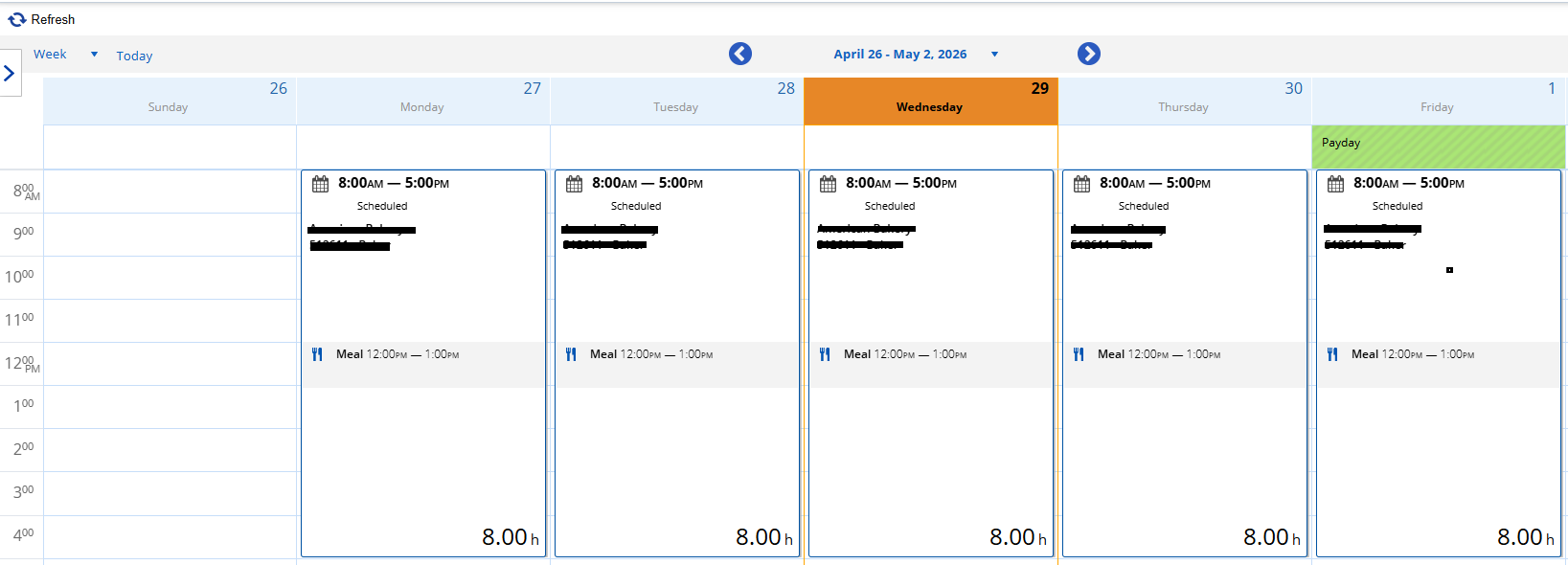
b. Schedule for the specified week will appear on the screen.
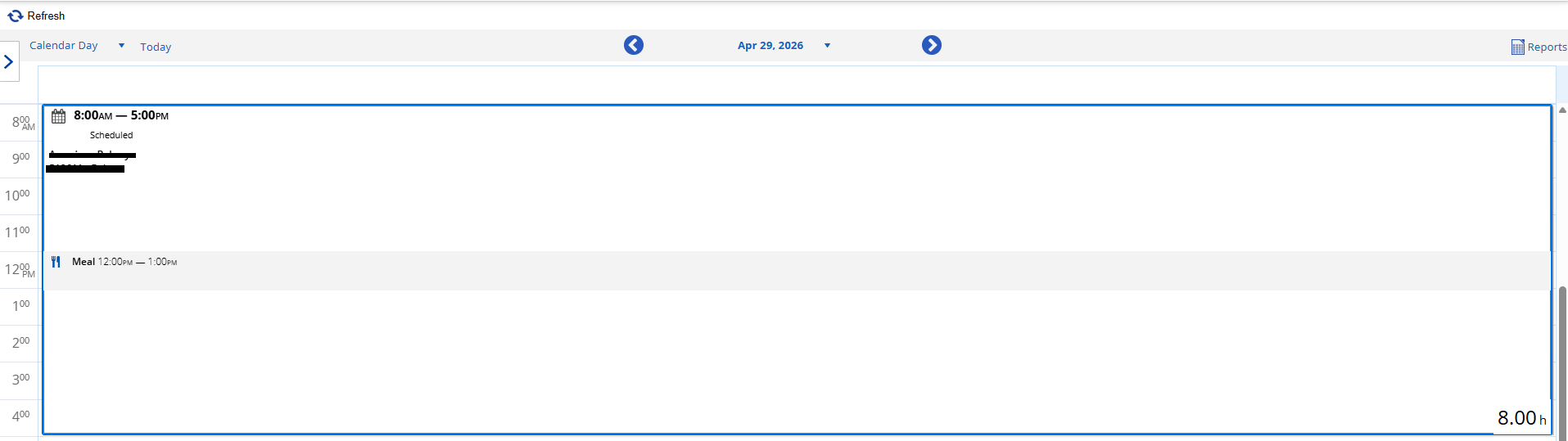
c. To view by day. click the calendar dropdown list and choose "calendar day."
d. Schedule for the specified day will appear on the screen.
Option 2: Phone Device
1. Download the Dayforce mobile application.
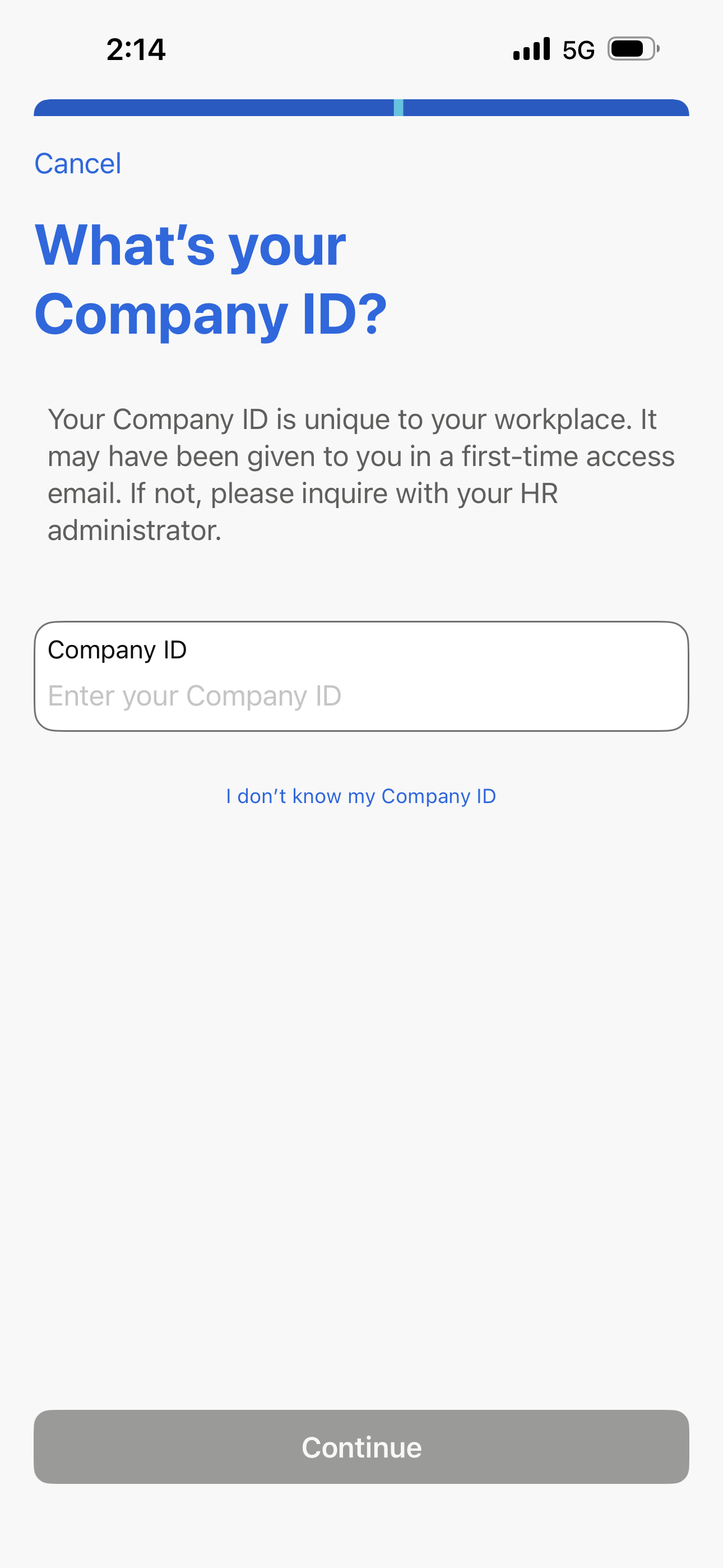
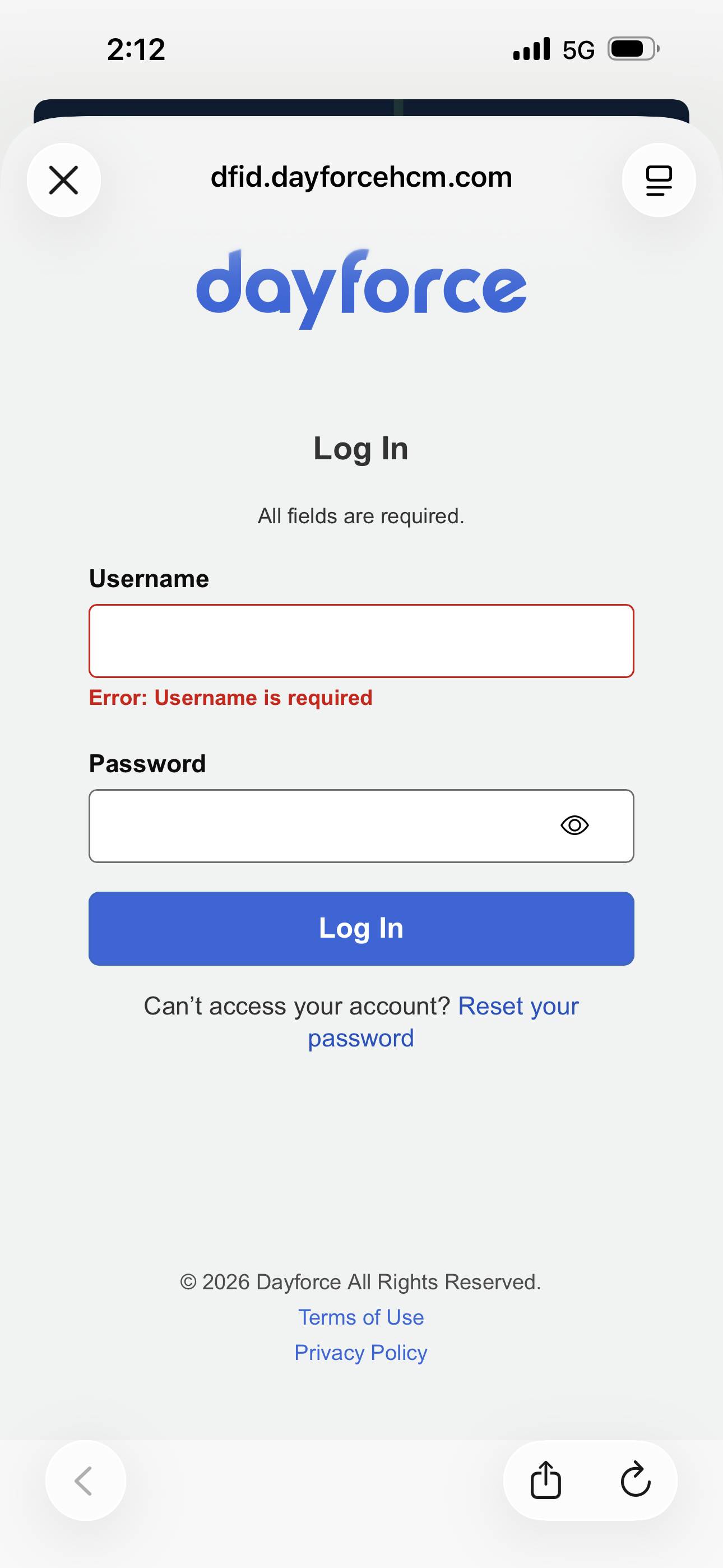
2. Click the Dayforce mobile application and input the following:
|
Company ID: GDCgroup
|
Username: firstname.lastname Password: **********
|
3. Home page will appear on the screen.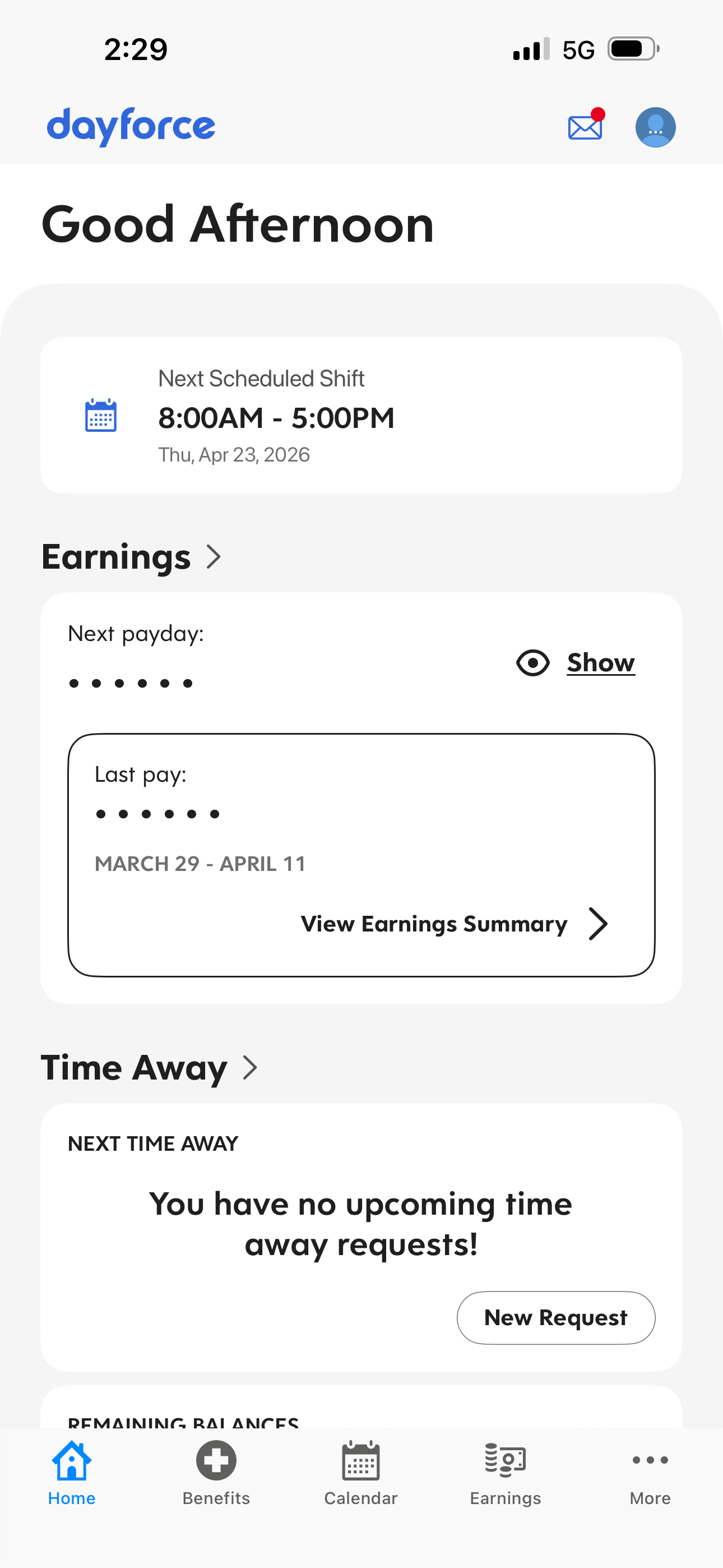
4. Click the "calendar" icon.

5. Shift/Schedule per day will appear on the screen.