
View / Print Check Stubs
Option 1: Using Laptop / Desktop
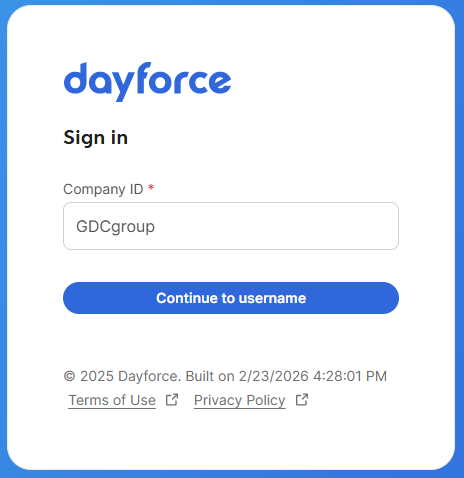
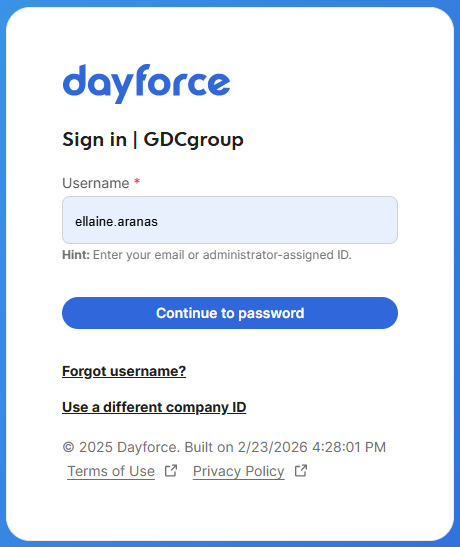
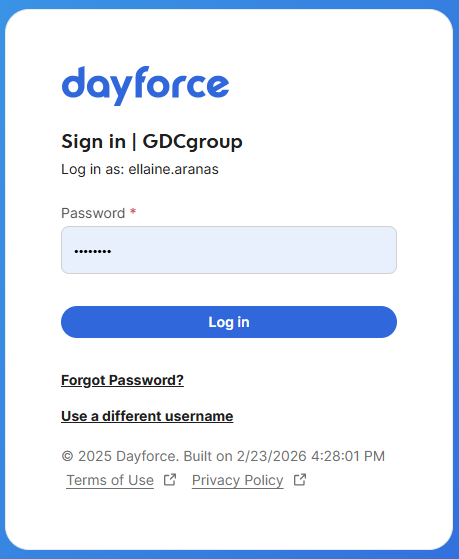
1. Log in to Dayforce at MyDayForce Login
|
Company ID: GDCgroup
|
Username: Firstname.Lastname
|
Password:
|
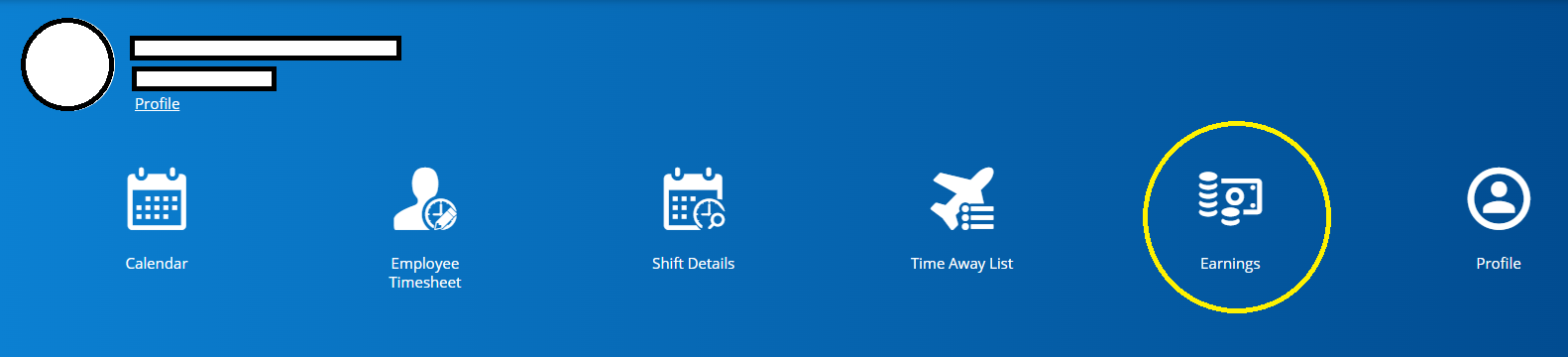
2. Click the "Earnings" icon in the home screen.
3. Click the specific month and choose the specific check stub.
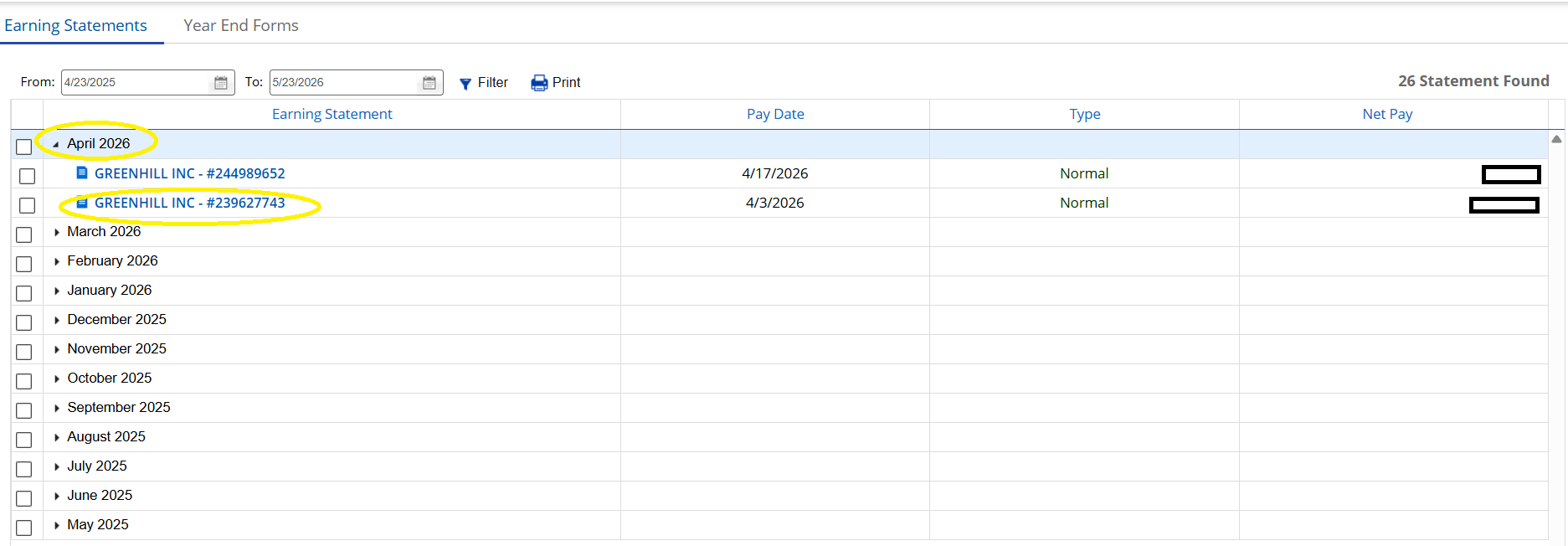
4. Check stub will show on the screen.
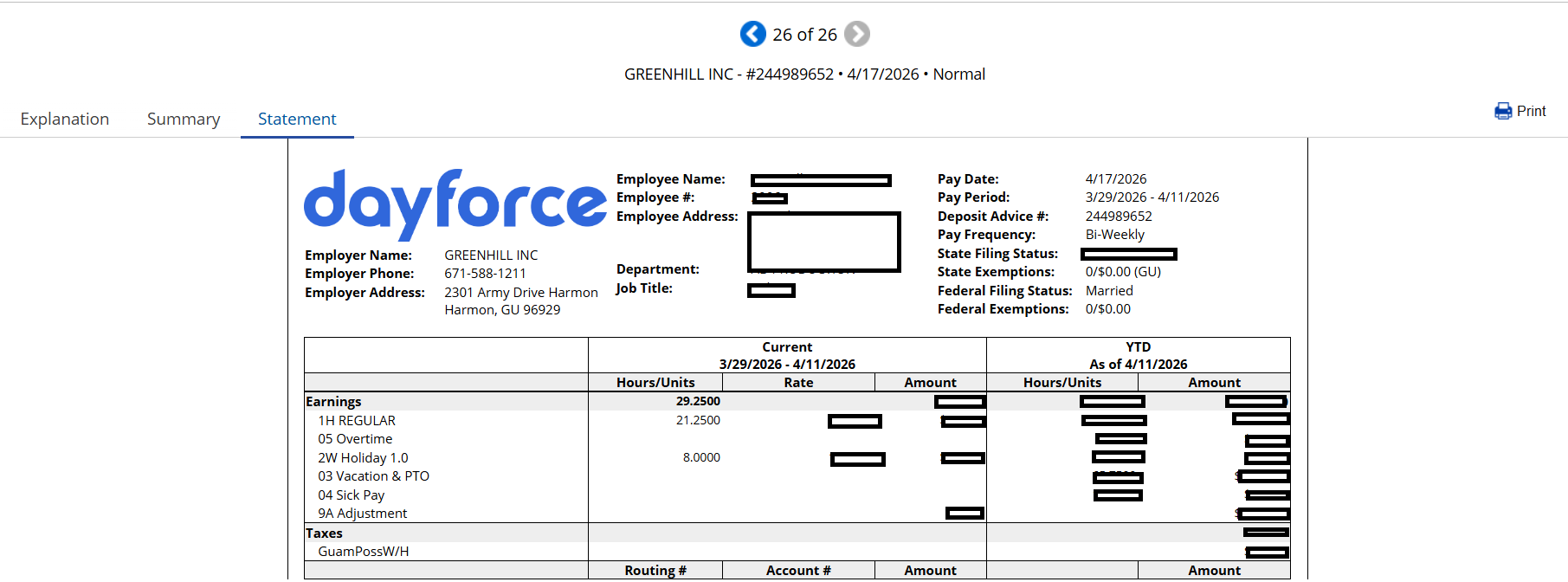
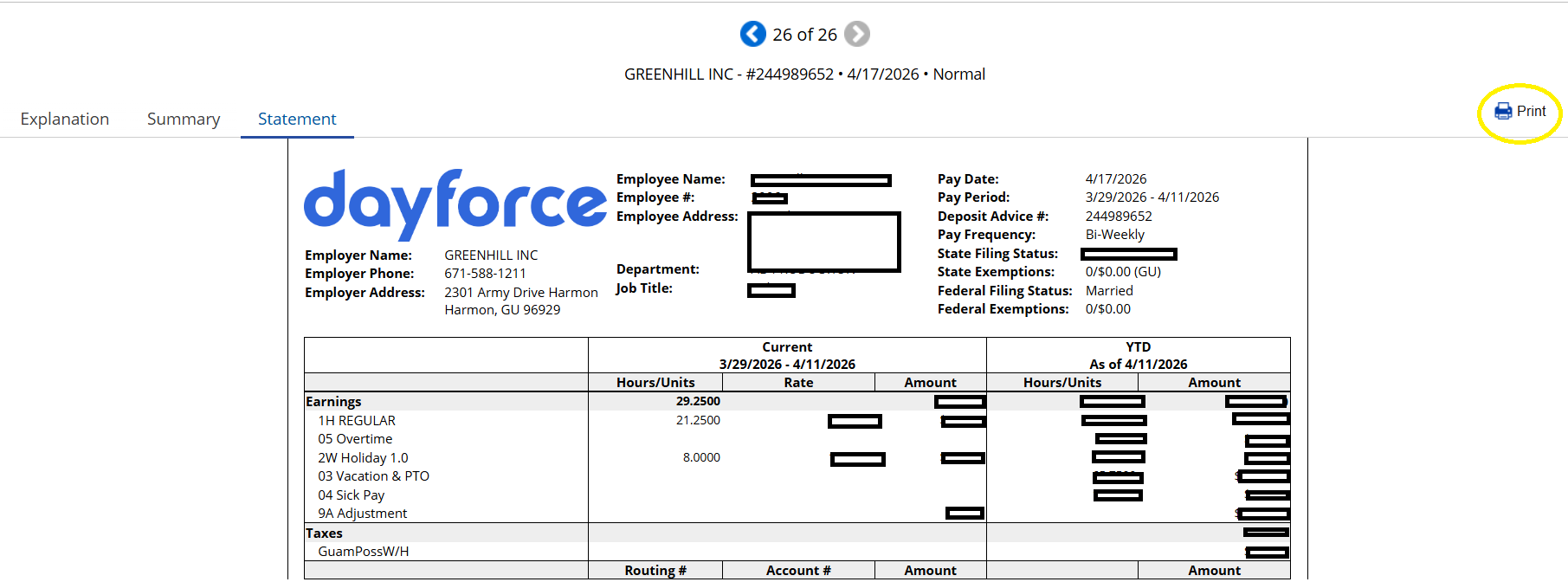
5. To print, click the "Print" icon.
6. Click "Print."
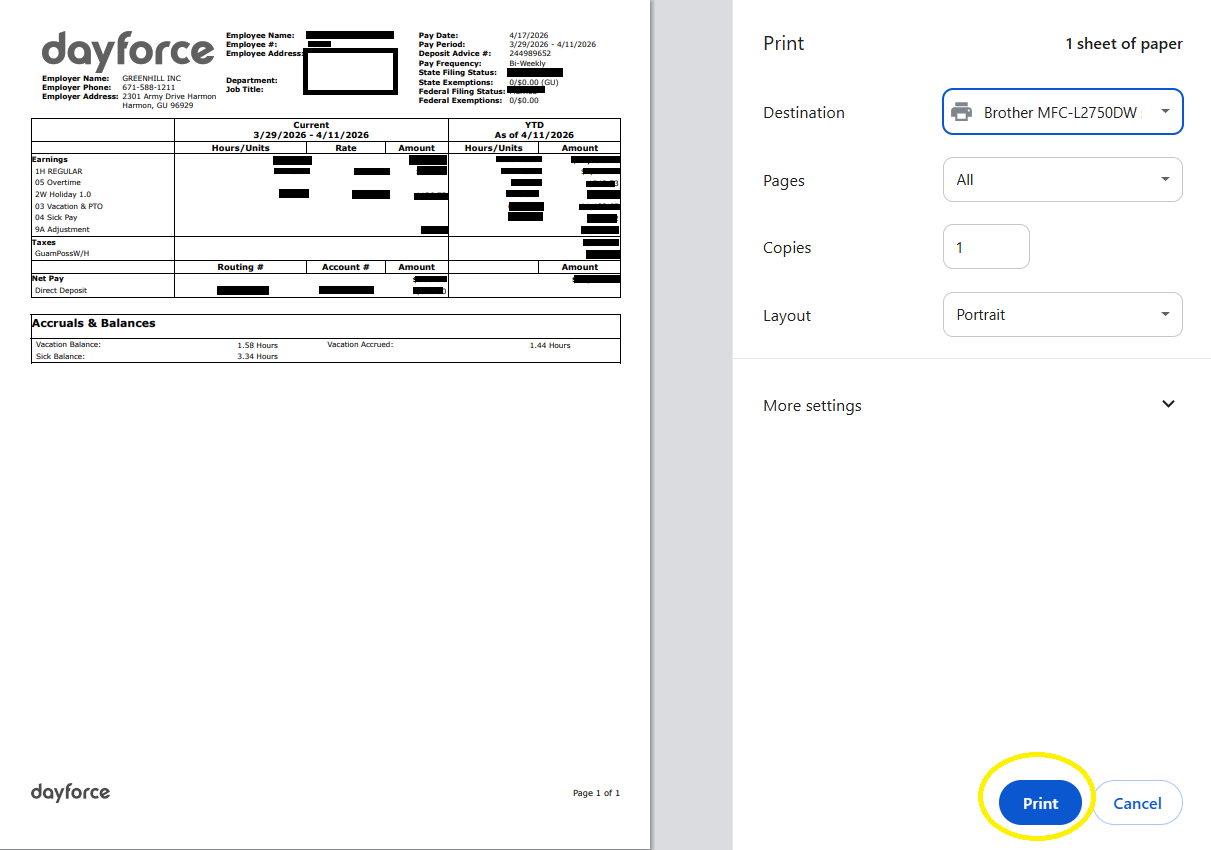
7. To save in PDF, Click "Print", change destination to "Save to PDF" and then click "Save."
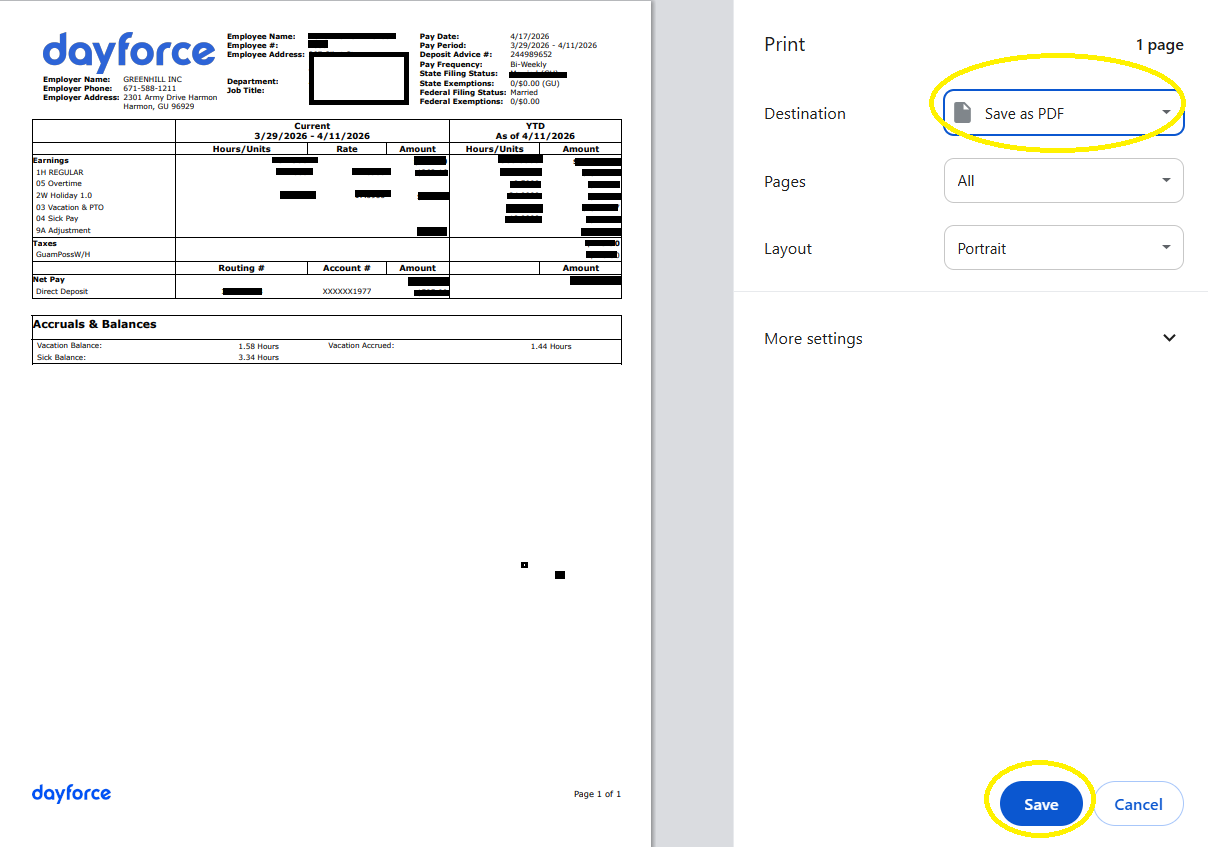
Note. Printing of check stubs can only be done using laptop/desktop.
Option 2: Using IphonePhone Device
- Click the Dayforce application in the phone.
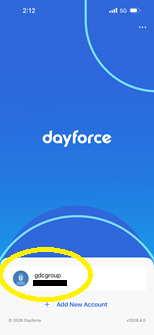
- Click the "GDCgroup" icon.
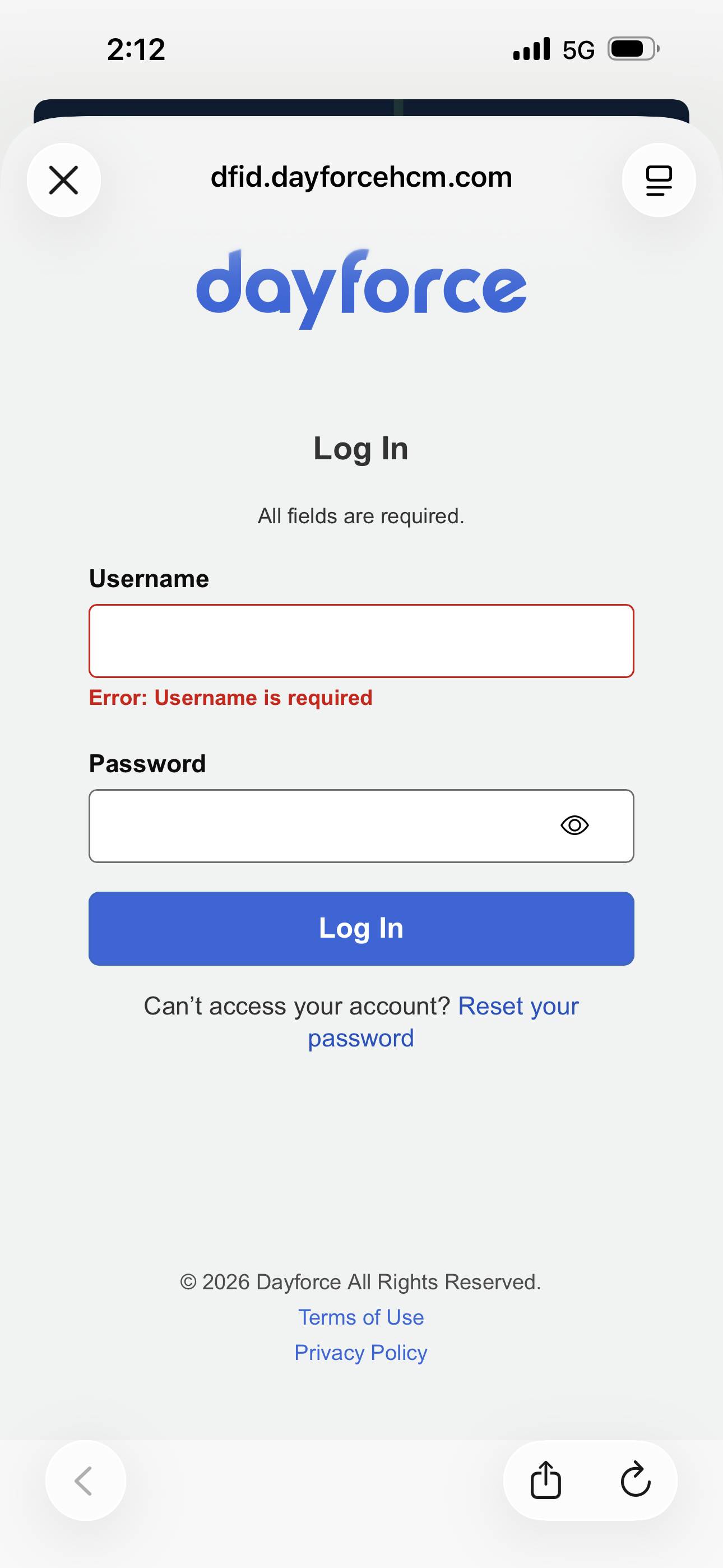
3. Log in to the account by typing the username and password and then click "Log In."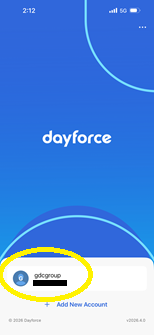
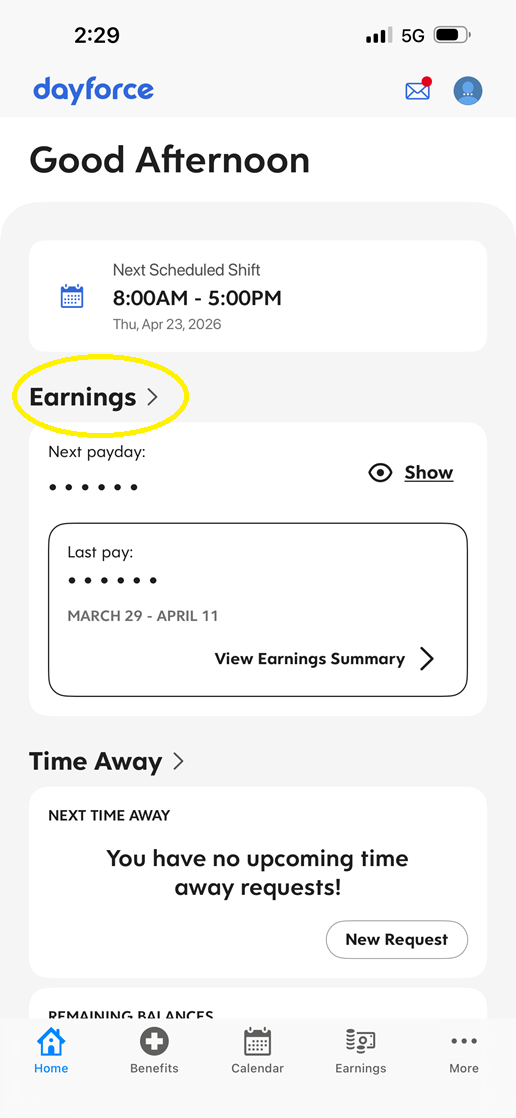
4. On the Home screen, click "Earnings."
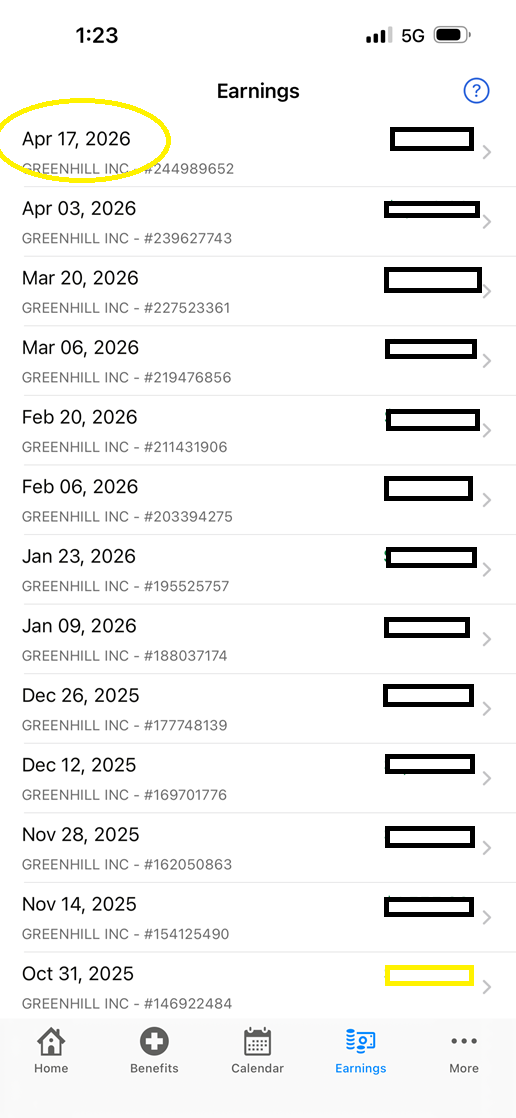
5. Click the specific date to view the check stub,
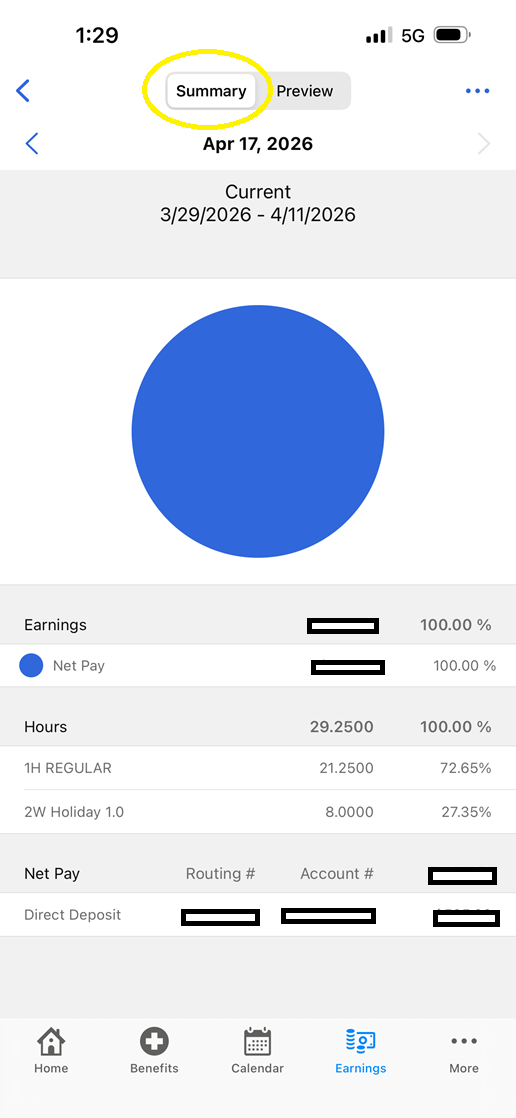
6. Check stub can be viewed through the following:
|
Click "Summary" button
|
Click "Preview" button
|
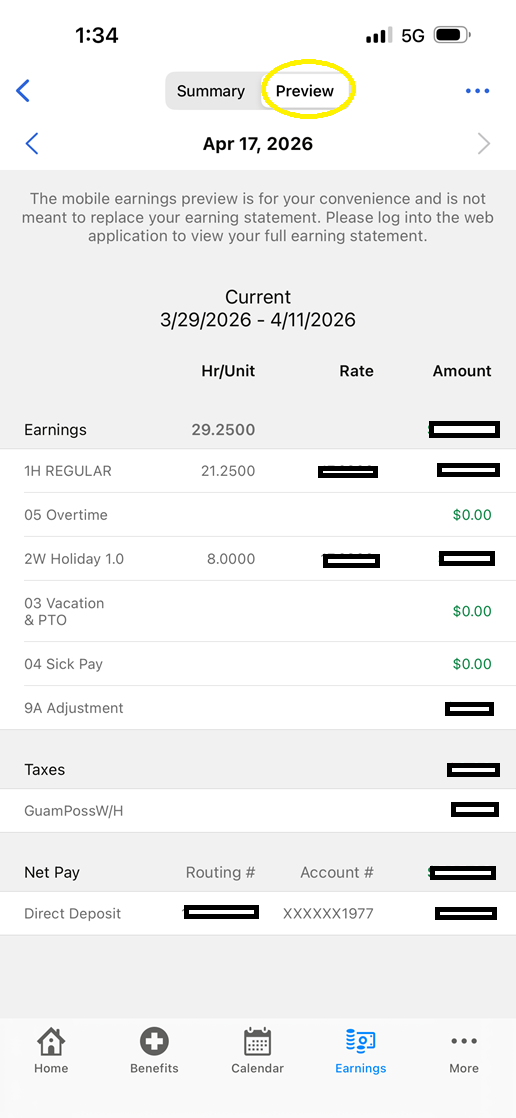
Note: The mobile earnings preview is for employee's convenience and is not meant to replace your earnings statement. Employees can log into the web application to view full earning statement.