Submitting Leave Requests
Option 1: Using Laptop/Desktop
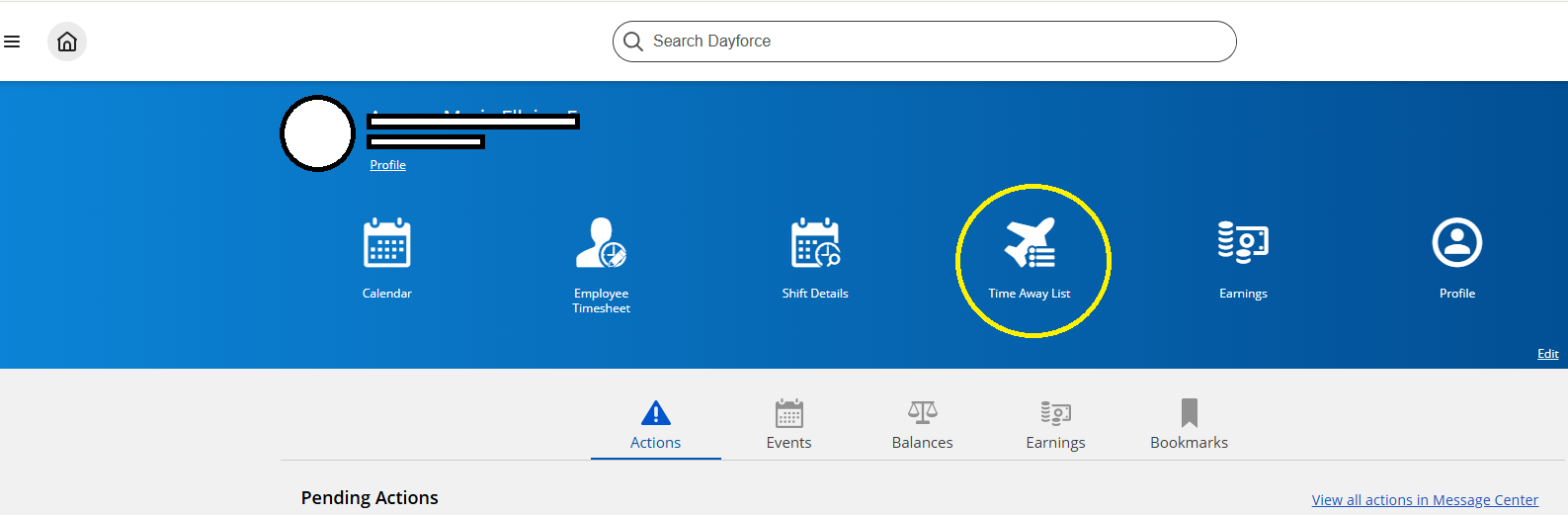
- Log in to Dayforce by typing username and password.
- Click the "Time Away List" icon.
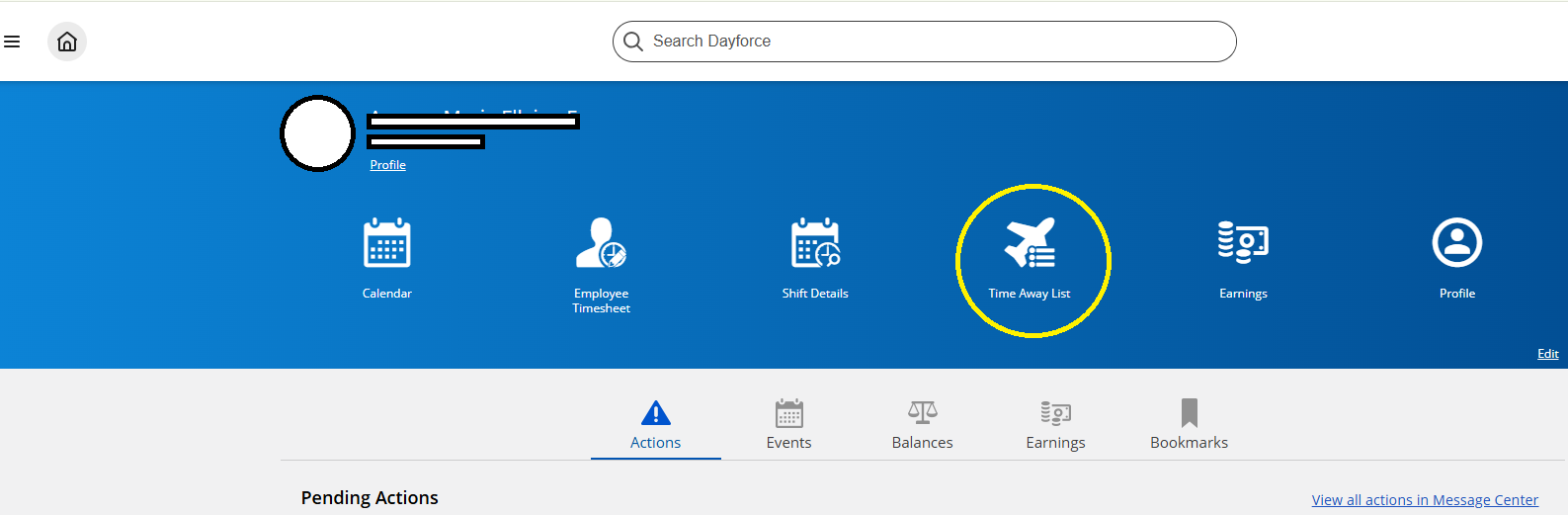
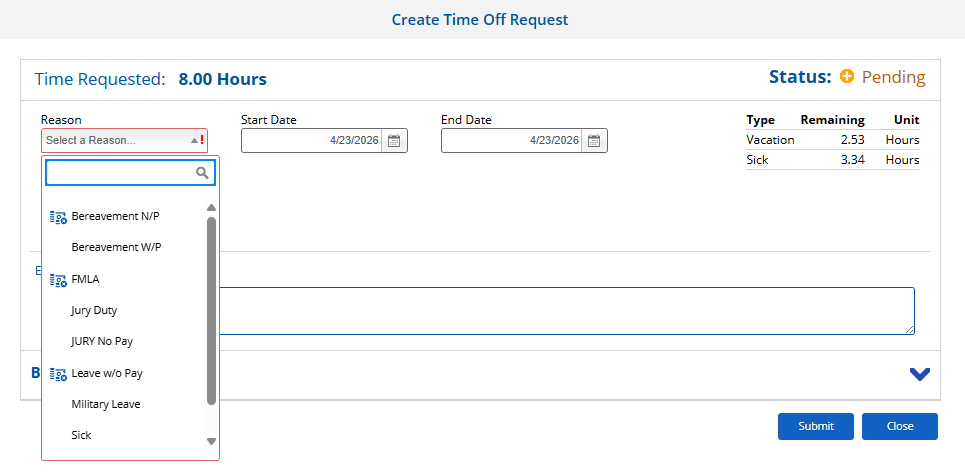
- Click the "Request Time Off" icon.

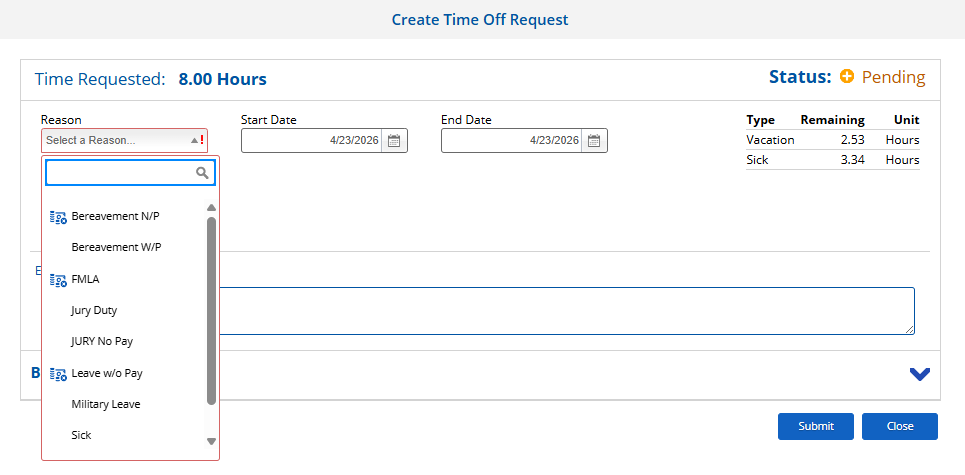
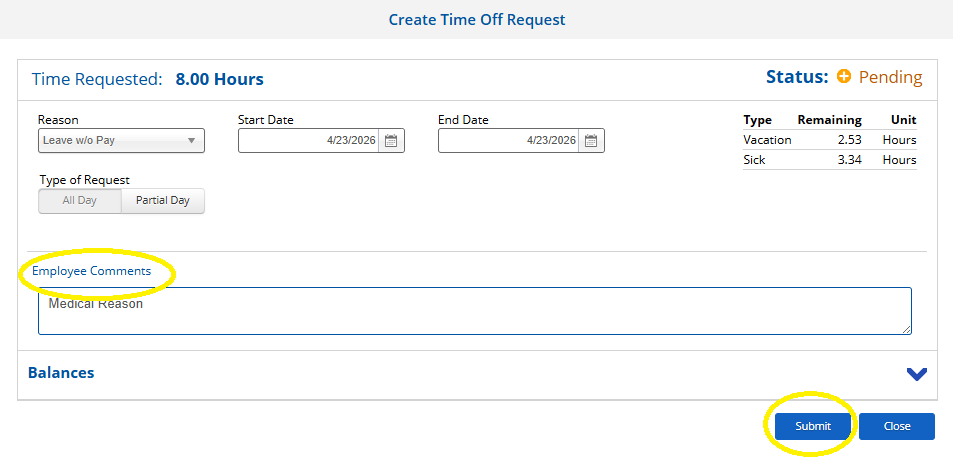
- Select Reason, start Date, End date and Type of Request.
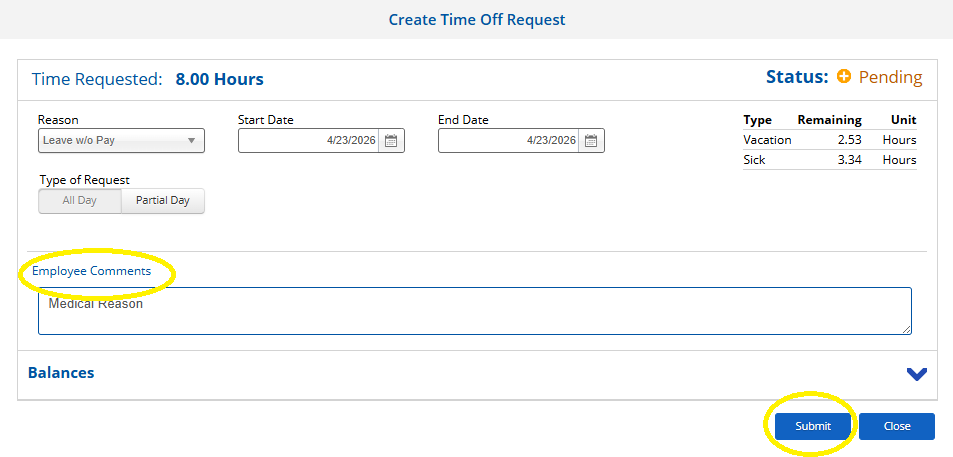
- Employee can input in the employee comment section the reason or purpose of the leave request and then click "Submit."
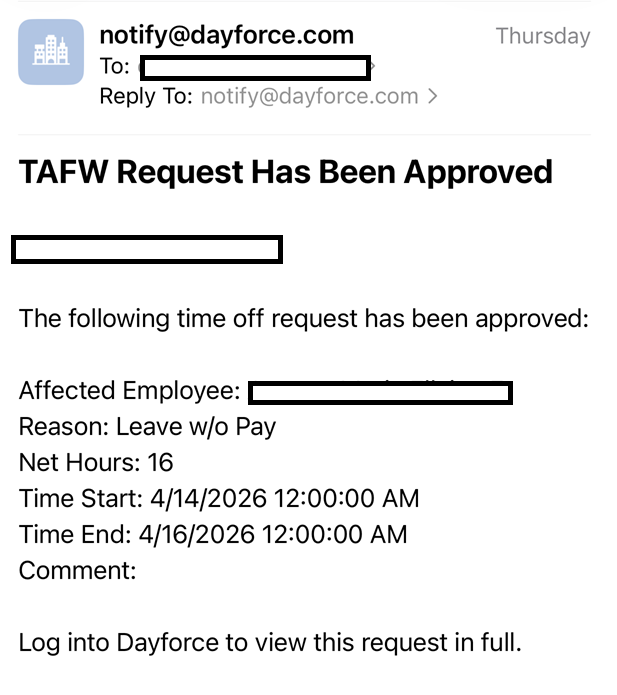
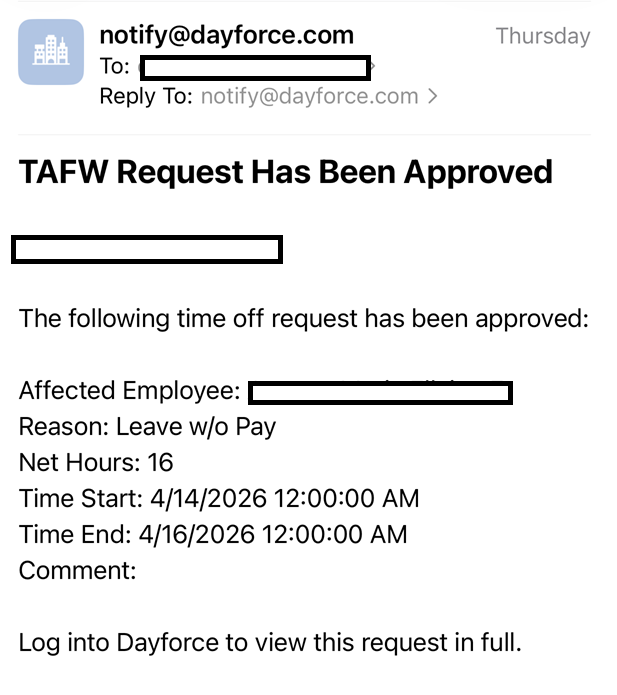
- Employee will receive an email once leave request has been approved.

Option 2: Using Iphone Device
- Click the Dayforce application in the phone.
- Click the "GDCgroup" icon.
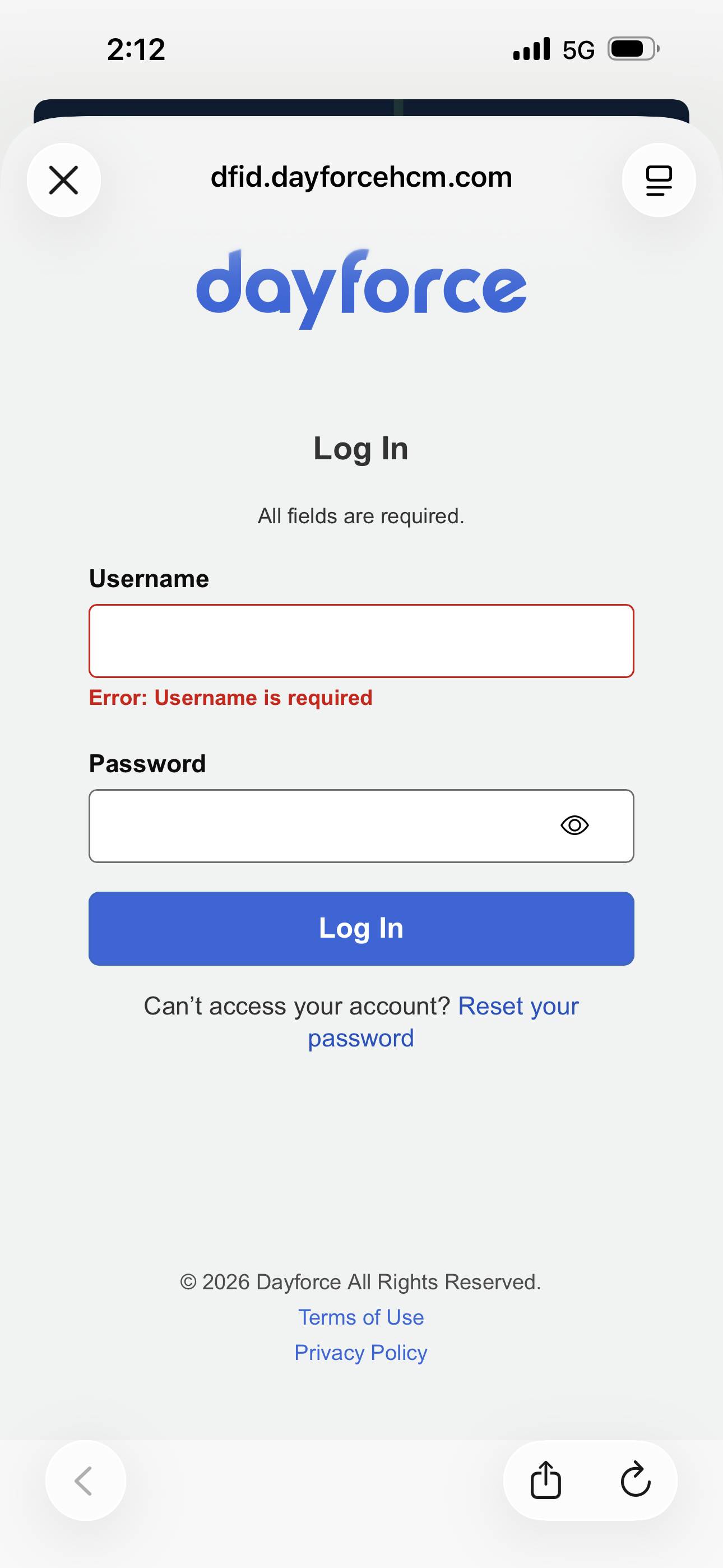
3. Log in to the account by typing the username and password and then click "Log In."

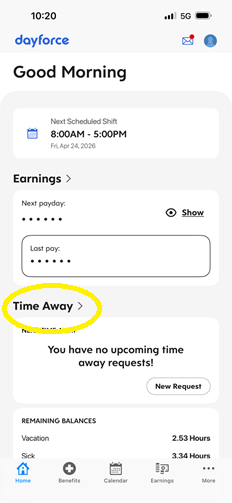
4. Click " Time Away."
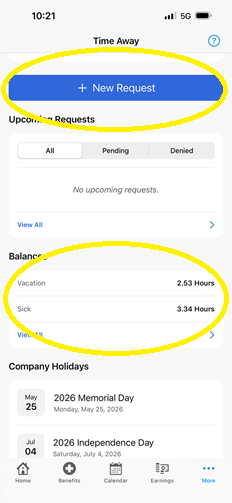
5. Check Leave balances, If with sufficient balance, click "New Request."
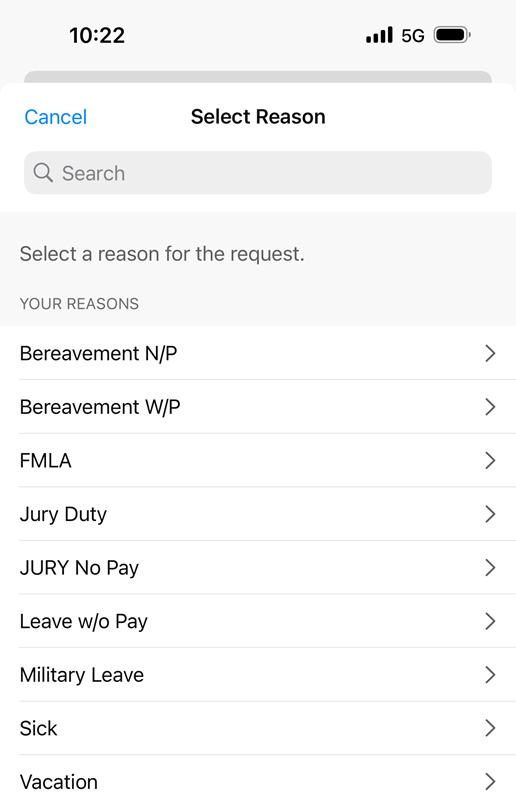
6. Select a reason for the request.
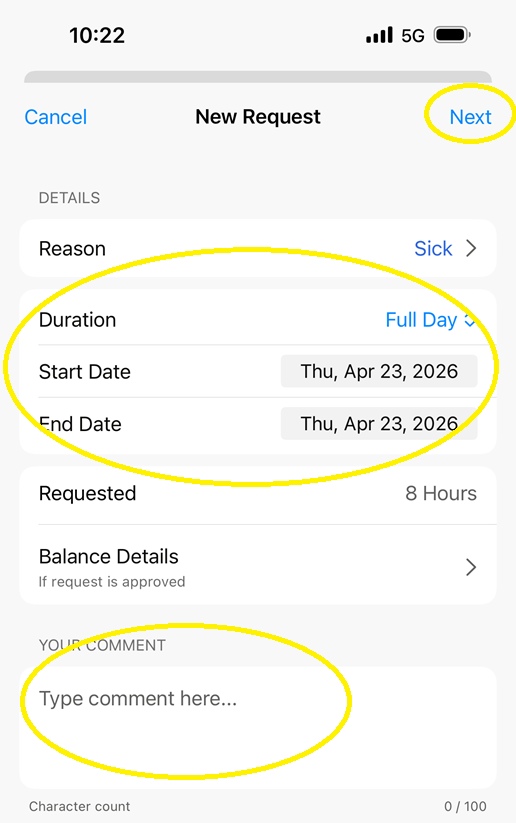
7. Input Duration (Full or Partial), Start Date, End Date and purpose of the request in the comment section then click "Next."
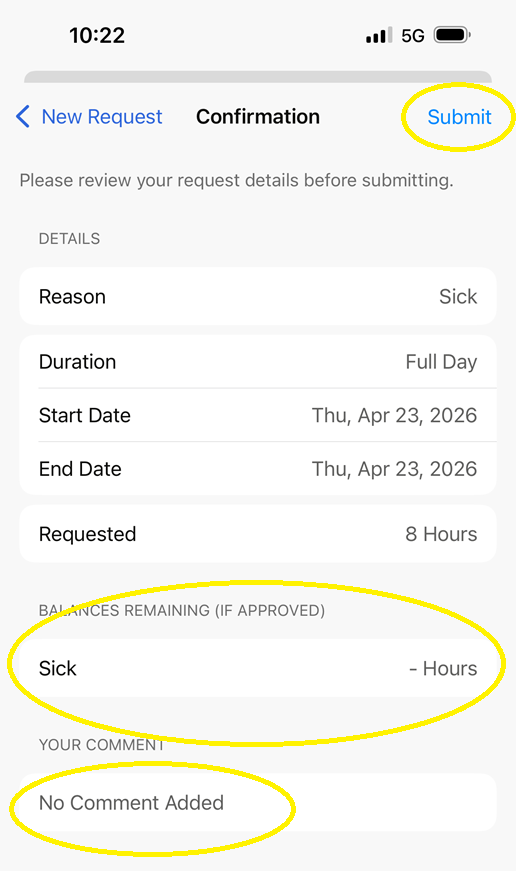
8. Review the details. Input additional comment if needed then click "Submit."
Note: Remaining Balance if approved will show in the screen.