Authorizing Timesheet Records
Auhtorizing of Late in / Late out
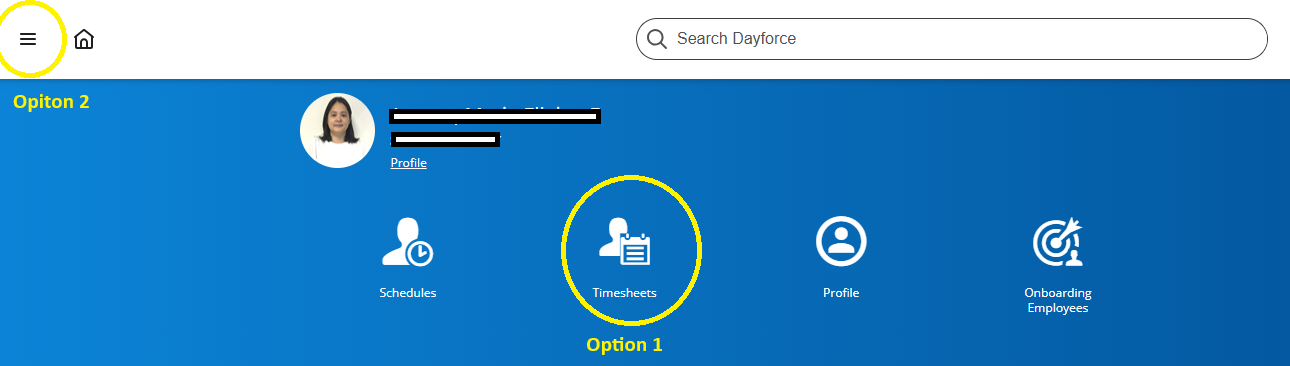
- Option 1: Click the timesheet icon.
Option 2: Click the navigation / list icon.
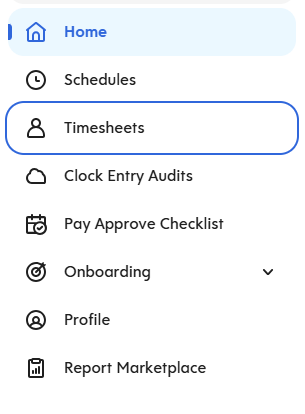
For option 2: after clicking the navigation / list icon, choose "timesheets" in the dropdown list.
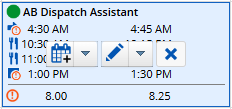
2. Go to the specific date in the employee's name to approve late in / late out then click the "pencil" icon.
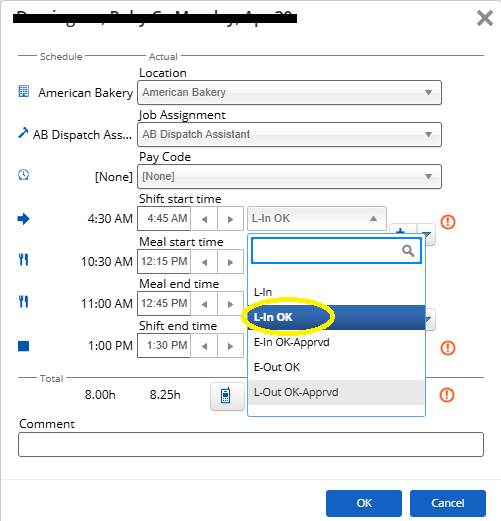
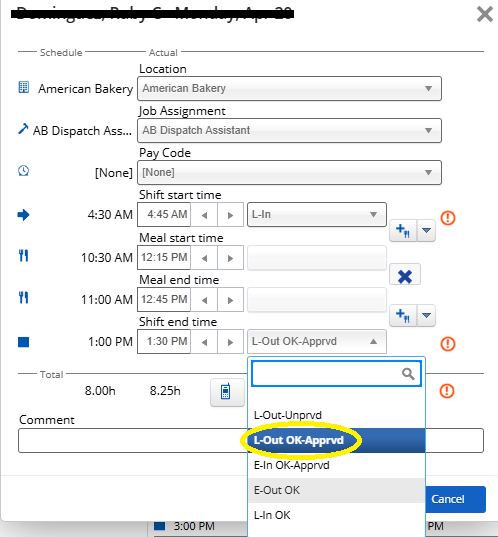
5. Input justification in approving late in / late out and then click "OK."
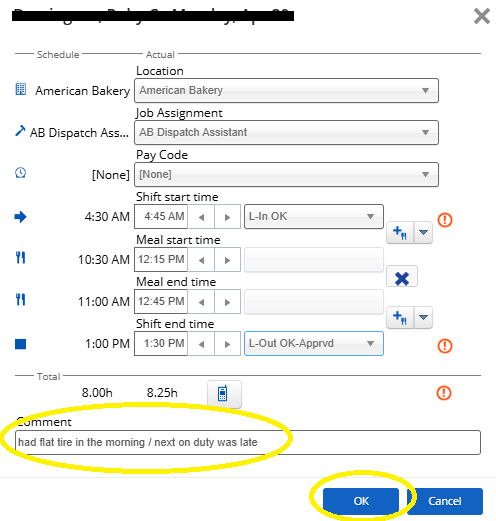
Authorizing Employee's shift
- For One Single Shift
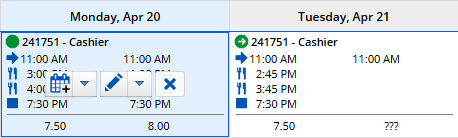
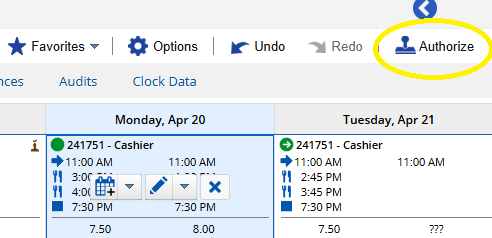
- Go to the specific employee and click date to authorize a shift. Specific box date will turn to blue.
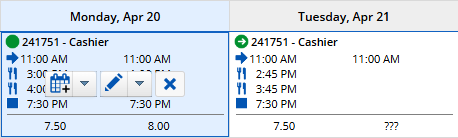
- Click the icon "Authorize."
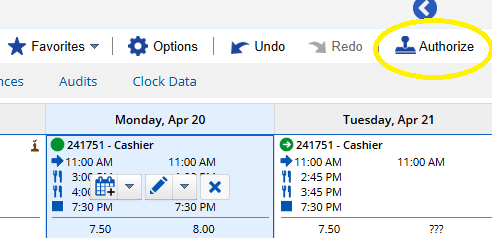
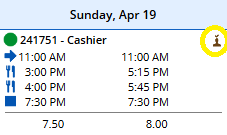
- A brown person with a check mark on top will appear once shift has been authorized.
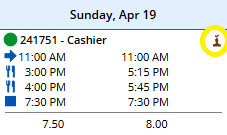
- Go to the specific employee and click date to authorize a shift. Specific box date will turn to blue.
- For One Week Shift
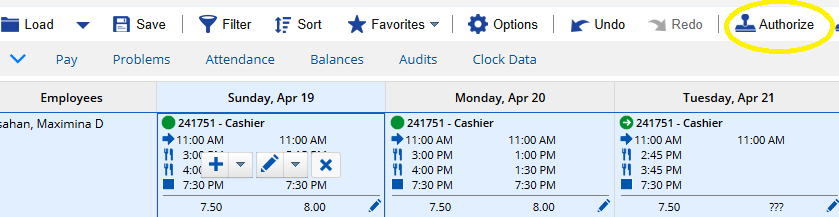
- Click the employee's name to highlight the entire week.

- Click the icon "Authorize."
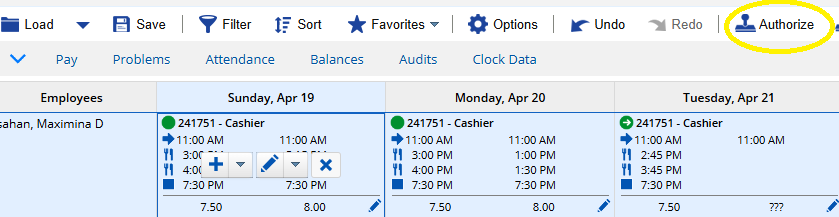
- A brown person with a check mark on top will appear on each shifts once shift has been authorized.

- Click the employee's name to highlight the entire week.