The computer is not sync to our AD.
- Go to RMS and to the computers terminal. (this should fix the issue) ``` #cmd gpupdate /force. ``` ##### OR - Sign out and sign in user again OR - Restart Computer OR - Run the command in powershell. ``` #PS gpupdate /force. ``` - If the powershell command above gives you error. Check if the AD are in sync. ``` Repadmin /replsummary ``` - If there is an issue. Escalate the issue to your supervisor. test # Rocketchat guide for android/iphone #### What? **This guide will teach you how to login in Rocket chat from your phone.** --- #### How to login (Iphone/Android)To access your Keycloak account, the link is: [https://keycloak.goodwindcorp.com/realms/Goodwind/account](https://keycloak.goodwindcorp.com/realms/Goodwind/account)
If you experience any issues with logging in through Keycloak, or resetting your password, please email [***itsupport@goodwindcorp.com***](mailto:itsupport@goodwindcorp.com) with a description of your issue to submit a ticket.
## What is Keycloak? Keycloak is an SSO (Single Sign-on) application allowing you to use your PC login to access rocket.Chat, and our ticketing system. Additionally, if you are locked out of your PC, forgot your password, or need to reset your password, you can use Keycloak to change your password. ## How to log into rocket.Chat with Keycloak ### PC 1. Press the blue "**Login with Keycloak**" button[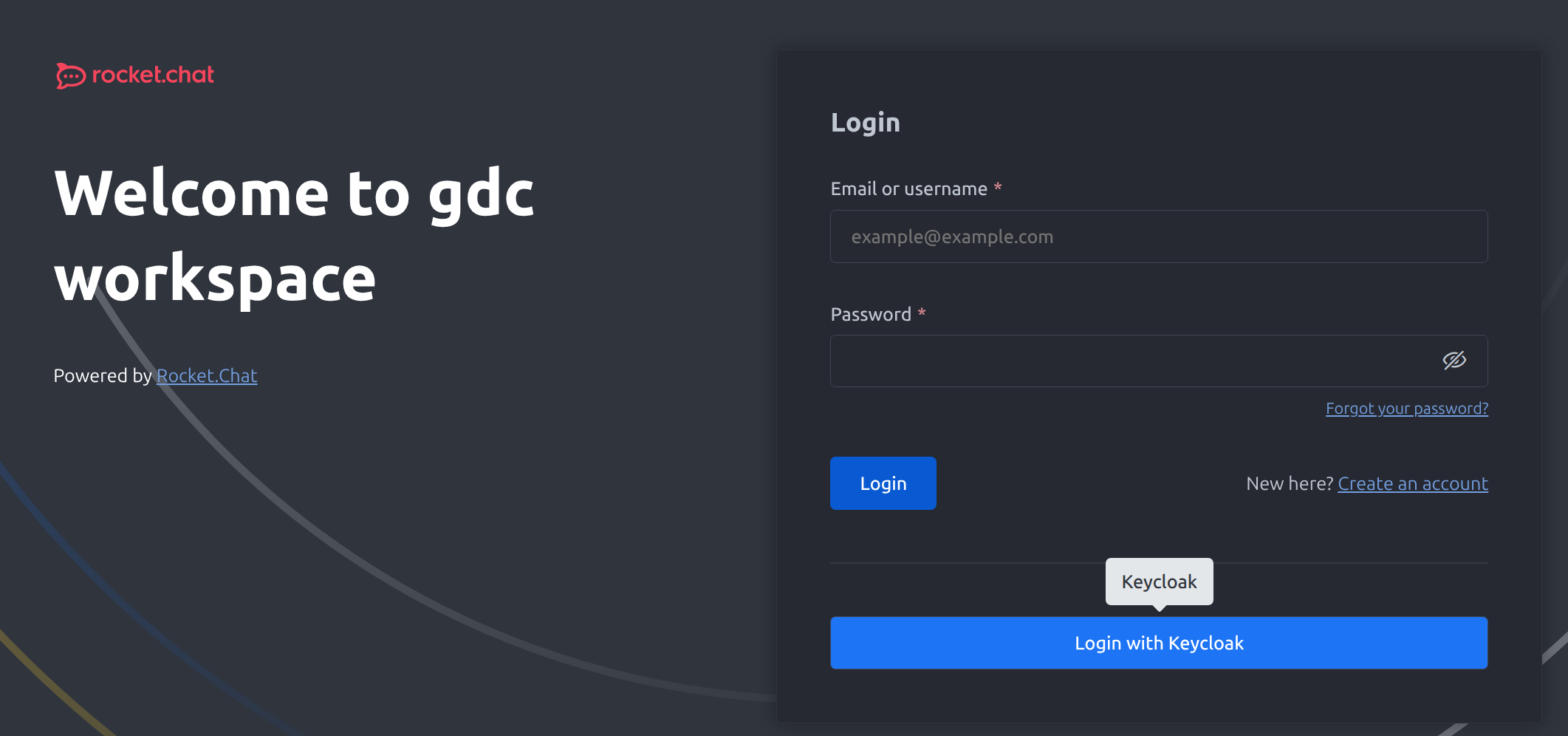](https://docs.goodwindcorp.com/uploads/images/gallery/2026-04/qUtimage.png) 2. A popup will open. This is the Keycloak log in page. Simply enter your PC Username (first.last), and your password. (**Note: You can also use your work email if the first.last does not work)**[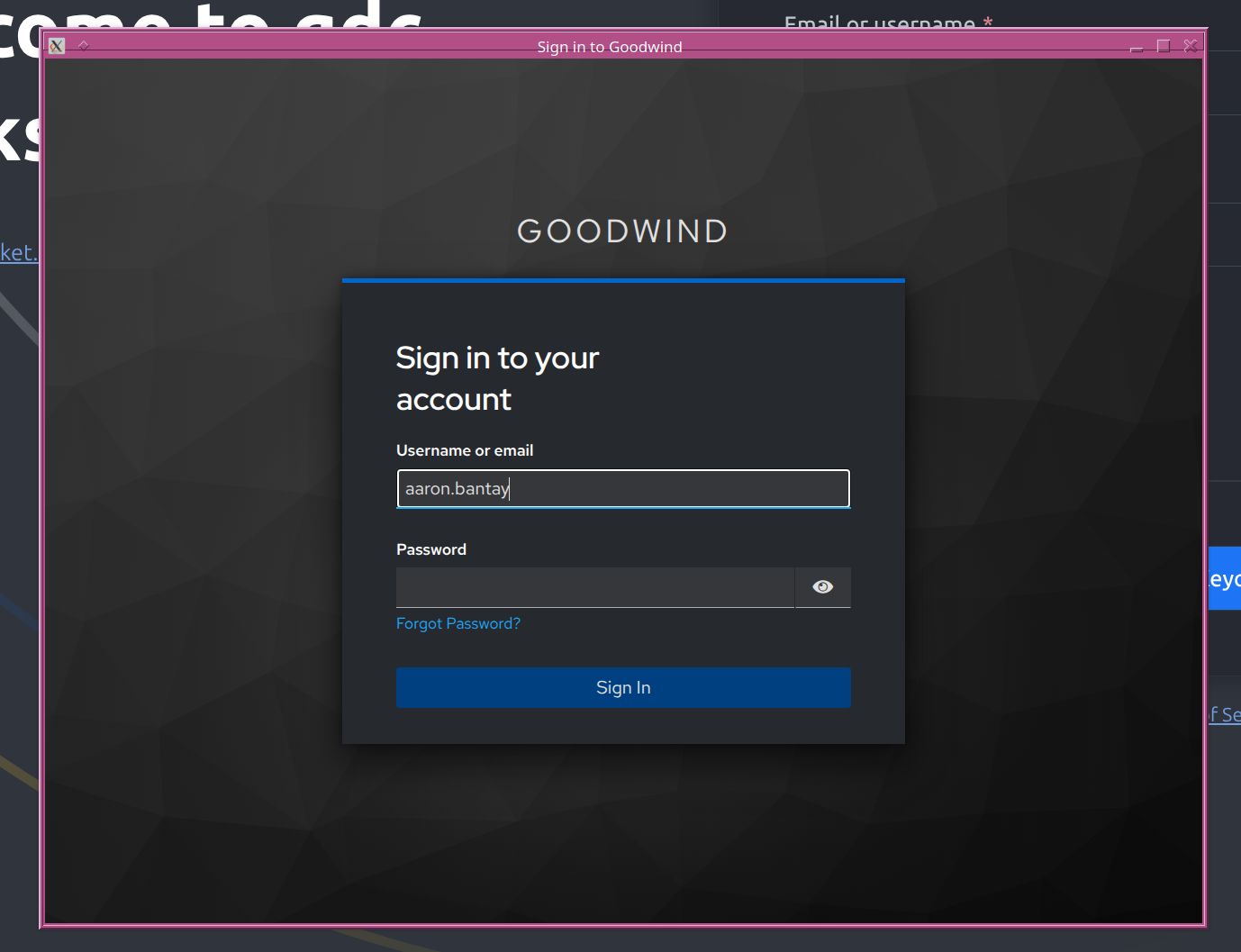](https://docs.goodwindcorp.com/uploads/images/gallery/2026-04/1ltimage.png) 3. After signing in, you should be logged in and able to access your rocket.Chat account. ### Mobile 1. Open the rocket.Chat app and enter the workspace url: **chat.goodwindcorp.com**[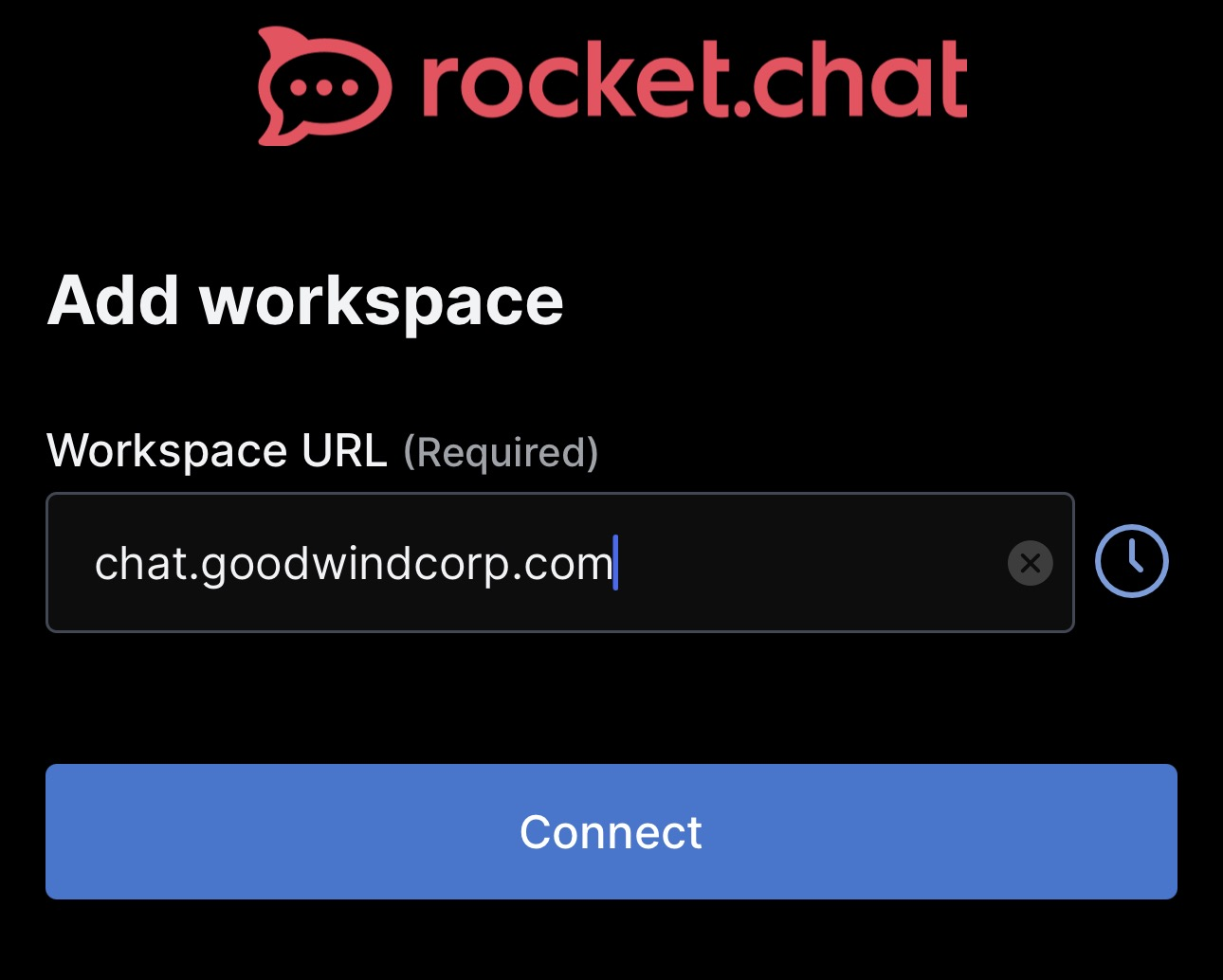](https://docs.goodwindcorp.com/uploads/images/gallery/2026-04/8FEimage.png) 2. In the Login page, select "**Continue with Login with Keycloak**"[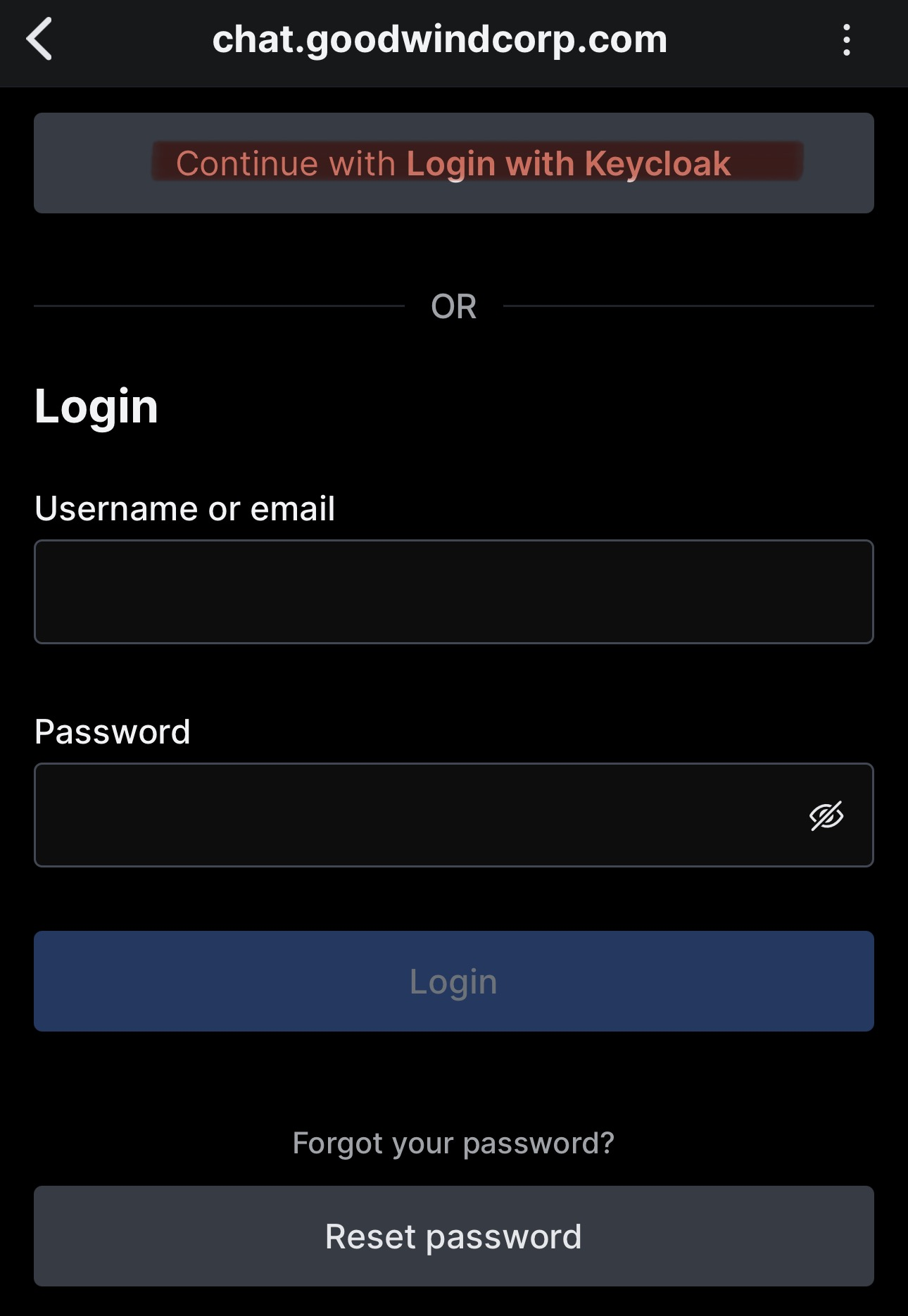](https://docs.goodwindcorp.com/uploads/images/gallery/2026-04/VxIimage.png) 3. A new window will open to the Keycloak log in page. Enter your username (**first.last**) and your password (**Credentials you use for your PC** **login**)[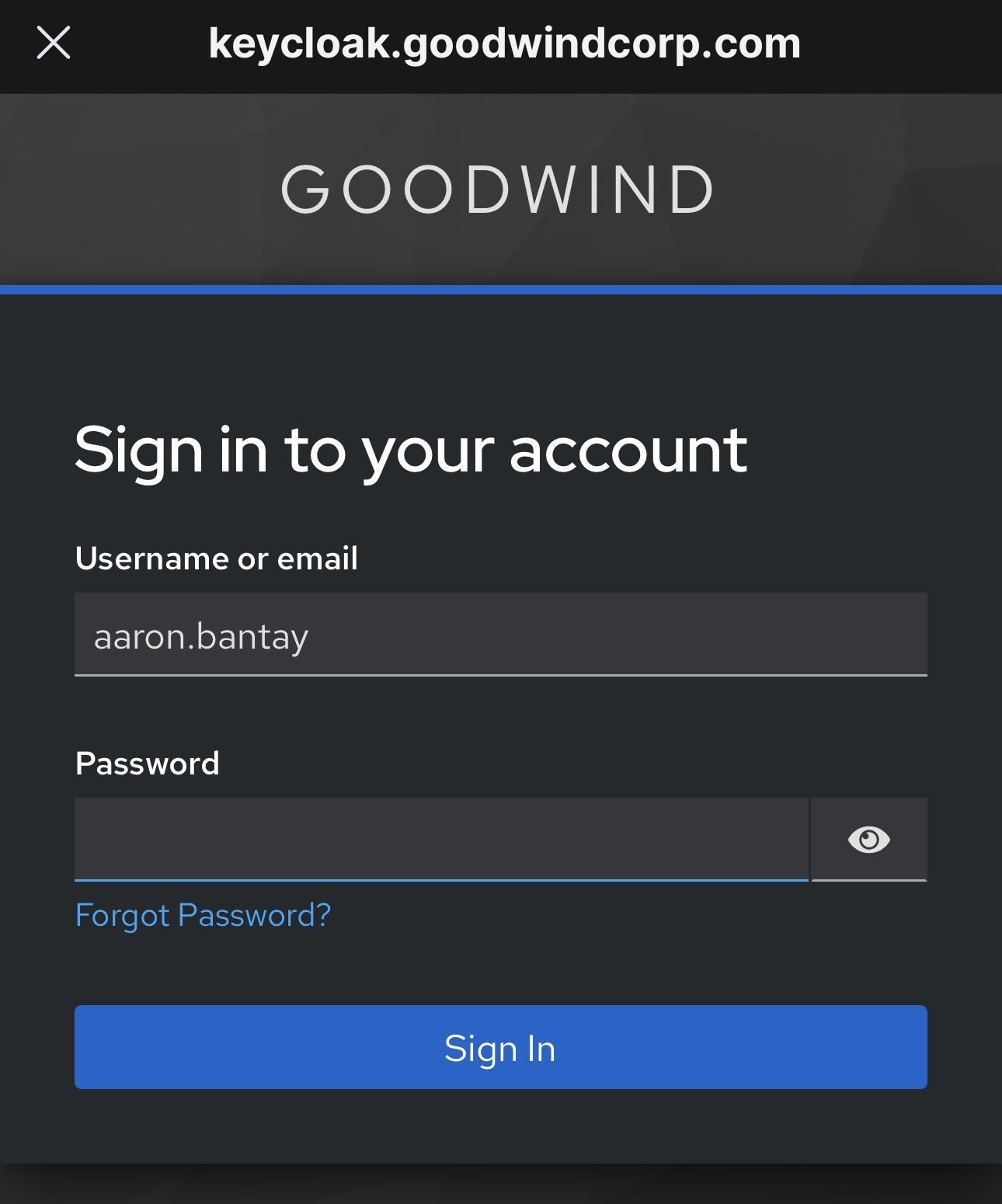](https://docs.goodwindcorp.com/uploads/images/gallery/2026-04/MrTimage.png) 4. Once pressing "**Sign in**" you will be redirected back to rocket.Chat and logged into your account. ## How to log into our ticketing system with Keycloak 1. Navigate to [support.goodwindcorp.com](https://support.goodwindcorp.com/), and click "**Sign in**" on the top right of the page[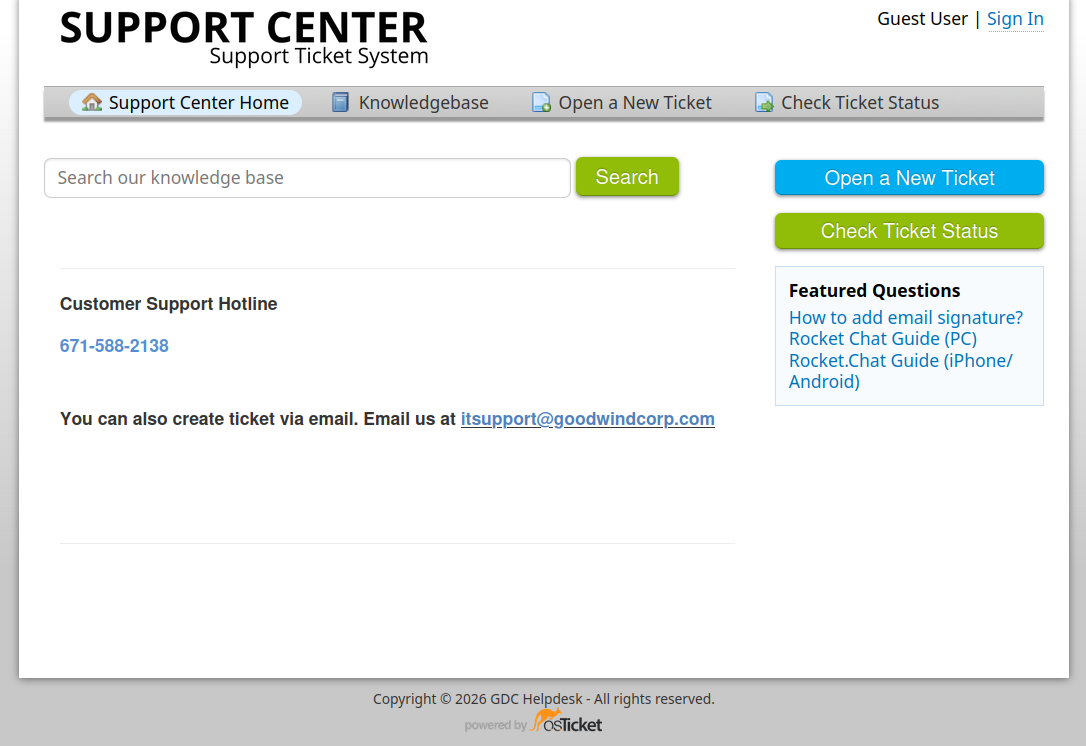](https://docs.goodwindcorp.com/uploads/images/gallery/2026-04/owximage.png) 2. Click the white box saying "**Sign in with Keycloak**"[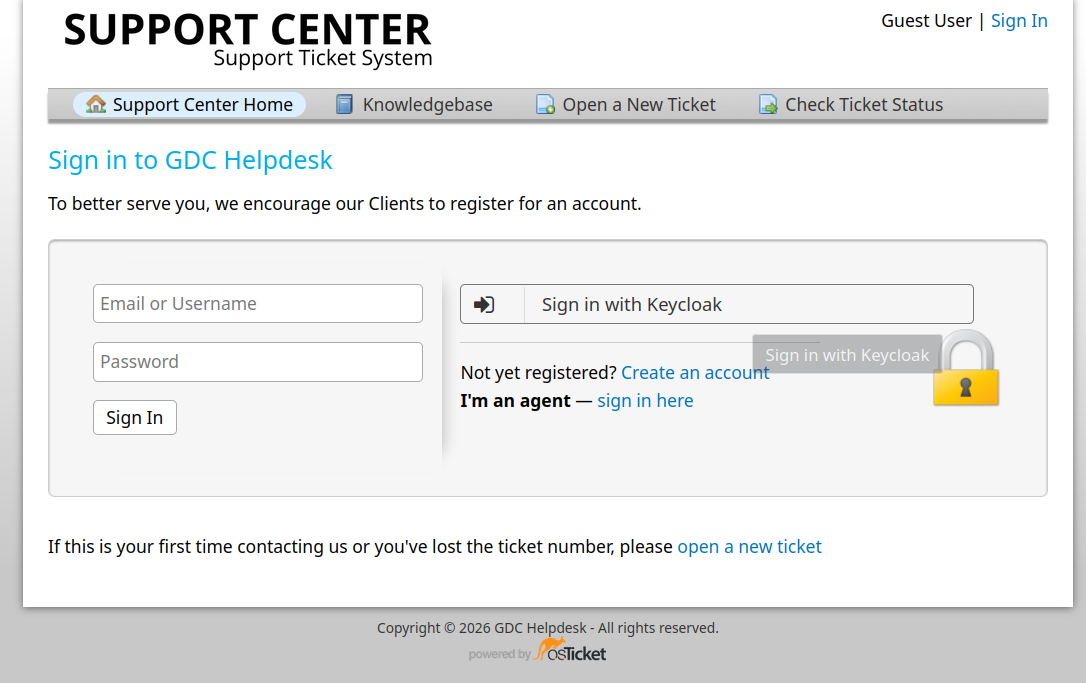](https://docs.goodwindcorp.com/uploads/images/gallery/2026-04/uABimage.png) 3. Your page will be redirected to Keycloak's log in page. Simply enter your PC username (**first.last**), and your password. (**Note: You can also use your work email if the first.last does not work)**[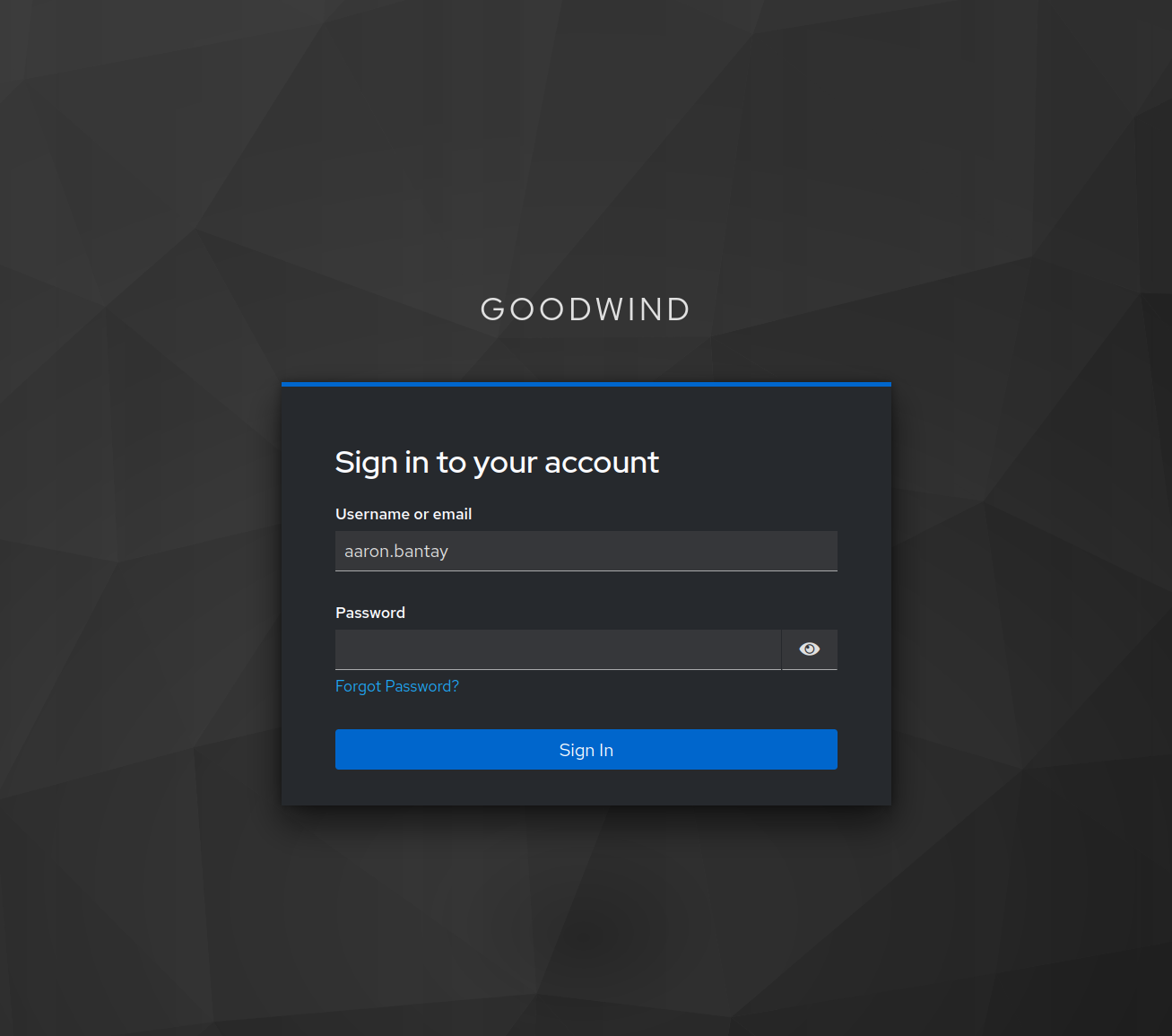](https://docs.goodwindcorp.com/uploads/images/gallery/2026-04/Vseimage.png) 4. After pressing "**Sign in**" you will be redirected back to your ticketing account where you can access your active tickets and create new ones. ## How to change your PC/AD password with KeycloakThere are **two ways** to change your PC/AD password with Keycloak. If you **know** your current password and simply want to change it, or if **you are locked out/forgot your** password.
### If you know your password 1. Navigate to Goodwind's Keycloak site: [https://keycloak.goodwindcorp.com/realms/Goodwind/account](https://keycloak.goodwindcorp.com/realms/Goodwind/account) 2. Enter your PC username and password and click "Sign in" 3. On the main page, click on "**Account Security**", and on the drop down select "**Signing in**"[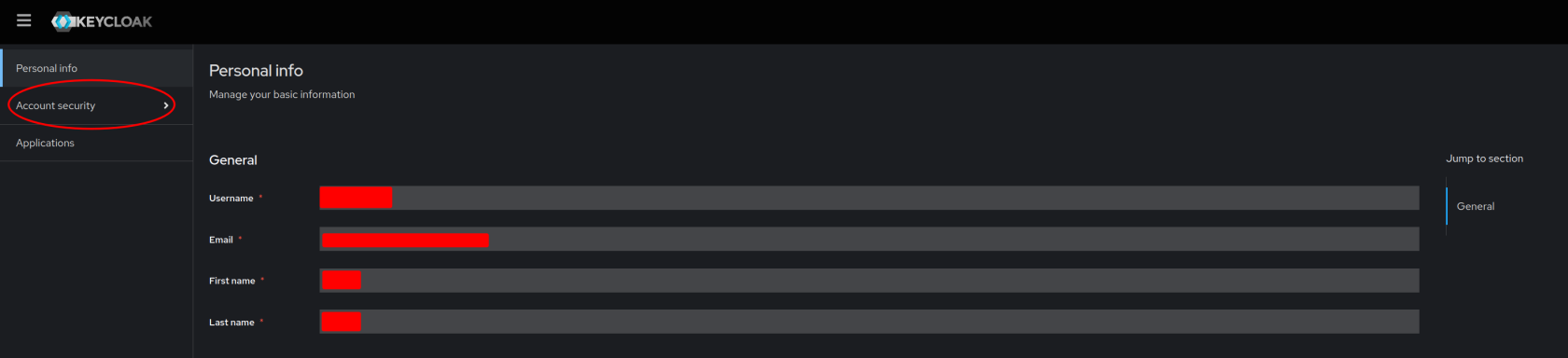](https://docs.goodwindcorp.com/uploads/images/gallery/2026-04/0vDimage.png) 4. In the Signing In page, click on "**Update**" next to the "My password" tab[](https://docs.goodwindcorp.com/uploads/images/gallery/2026-04/9gYimage.png) 5. Enter your new password, and confirm it. Press "**Submit**" and you are done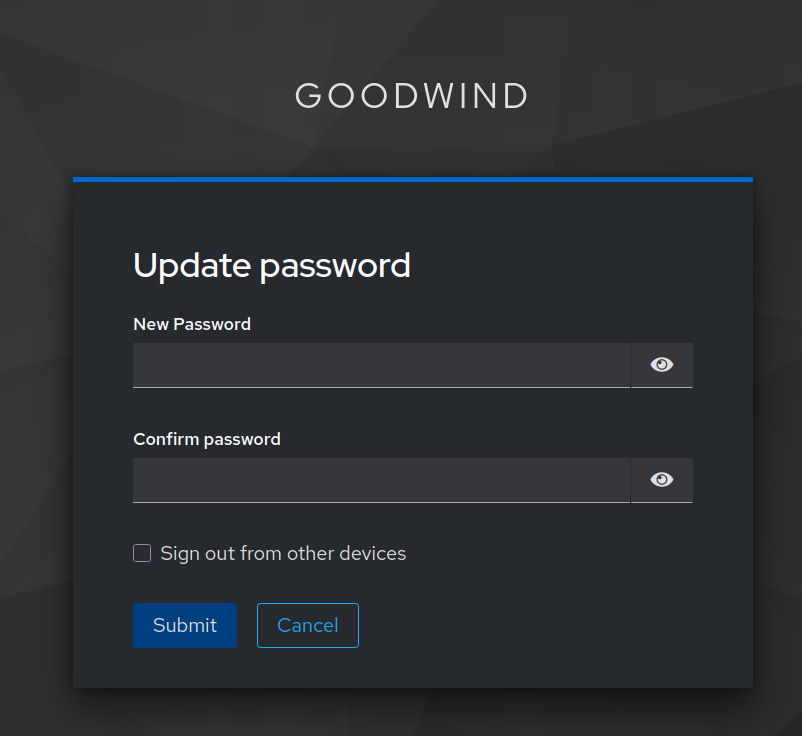](https://docs.goodwindcorp.com/uploads/images/gallery/2026-04/pwYimage.png) ### If you are locked out or forgot your password 1. Navigate to Goodwind's Keycloak site: [https://keycloak.goodwindcorp.com/realms/Goodwind/account](https://keycloak.goodwindcorp.com/realms/Goodwind/account) 2. Press the "**Forgot Password?**" button under the Password entry box[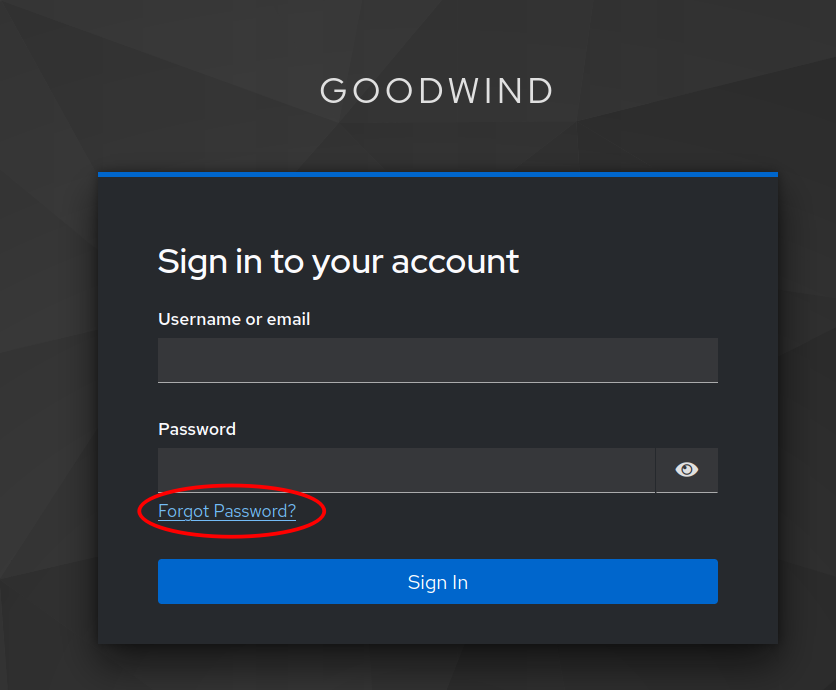](https://docs.goodwindcorp.com/uploads/images/gallery/2026-04/g9Nimage.png) 3. In the "**Forgot Your Password?**" section: 1. Enter your username (**first.last**). And email will be sent to the email your username is tied to. Usually your **work email** 2. OR, enter your email (usually your work email). If you have an account tied to that email, instructions will be sent 4. Press submit and you should see this confirmation[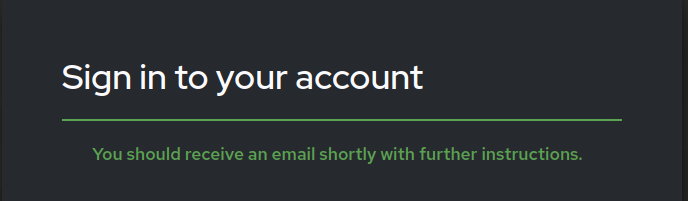](https://docs.goodwindcorp.com/uploads/images/gallery/2026-04/tH1image.png) 5. Check your email inbox. You should receive this email from "**GDC IT Support**". ***If you have not received it or cannot find it, please check your spam folder.*** [](https://docs.goodwindcorp.com/uploads/images/gallery/2026-04/Tkfimage.png)[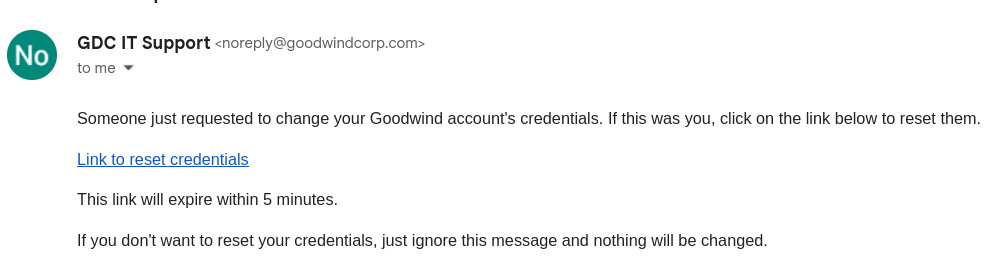](https://docs.goodwindcorp.com/uploads/images/gallery/2026-04/jeIimage.png) 6. Clicking on the link will open Keycloak and prompt you to enter a new password. Please enter a new password and press "**Submit**"[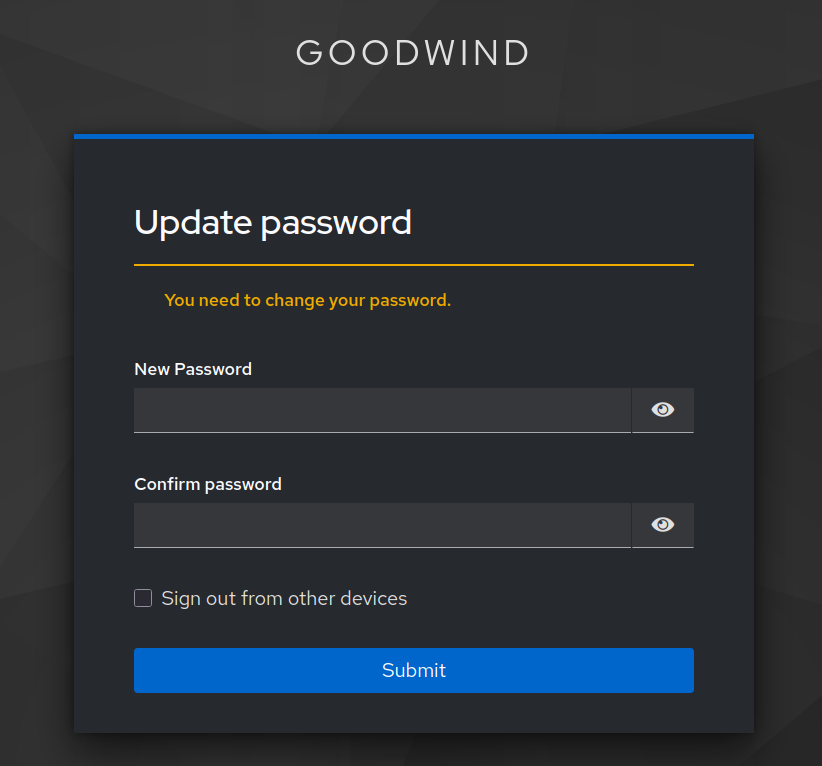](https://docs.goodwindcorp.com/uploads/images/gallery/2026-04/b1Cimage.png)