# View / Print Check Stubs

#### <span style="text-decoration: underline;">**Option 1: Using Laptop / Desktop**</span>

1\. Log in to Dayforce at **[MyDayForce Login](https://www.dayforcehcm.com/mydayforce/login.aspx "Dayforce Website")**

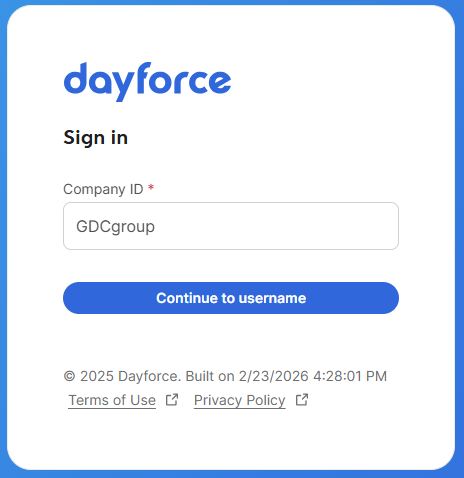
<table border="1" id="bkmrk-company-id%3A-gdcgroup" style="width: 89.4048%;"><colgroup><col style="width: 36.3903%;"></col><col style="width: 32.3914%;"></col><col style="width: 31.325%;"></col></colgroup><tbody><tr><td>Company ID: GDCgroup

[![image.png](https://docs.goodwindcorp.com/uploads/images/gallery/2026-04/scaled-1680-/Prcimage.png)](https://docs.goodwindcorp.com/uploads/images/gallery/2026-04/Prcimage.png)

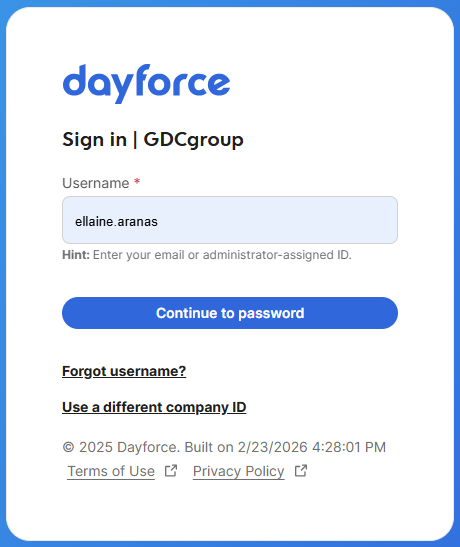
</td><td>Username: Firstname.Lastname

[![image.png](https://docs.goodwindcorp.com/uploads/images/gallery/2026-04/scaled-1680-/kXjimage.png)](https://docs.goodwindcorp.com/uploads/images/gallery/2026-04/kXjimage.png)

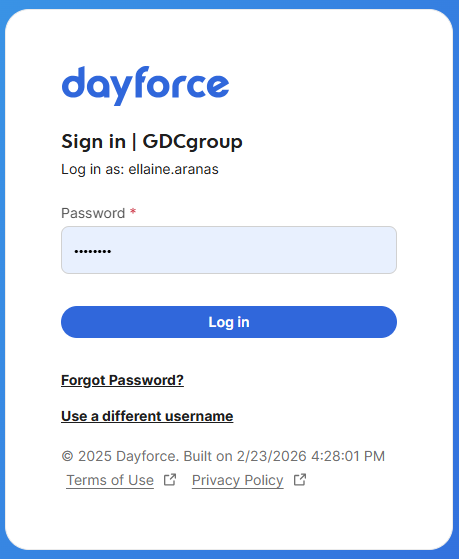
</td><td>Password:

[![image.png](https://docs.goodwindcorp.com/uploads/images/gallery/2026-04/scaled-1680-/BCRimage.png)](https://docs.goodwindcorp.com/uploads/images/gallery/2026-04/BCRimage.png)

</td></tr></tbody></table>

2\. Click the "Earnings" icon in the home screen.

[![image.png](https://docs.goodwindcorp.com/uploads/images/gallery/2026-04/scaled-1680-/Y0nimage.png)](https://docs.goodwindcorp.com/uploads/images/gallery/2026-04/Y0nimage.png)

3\. Click the specific month and choose the specific check stub.

[![image.png](https://docs.goodwindcorp.com/uploads/images/gallery/2026-04/scaled-1680-/ZDbimage.png)](https://docs.goodwindcorp.com/uploads/images/gallery/2026-04/ZDbimage.png)

4\. Check stub will show on the screen.

[![image.png](https://docs.goodwindcorp.com/uploads/images/gallery/2026-04/scaled-1680-/k2kimage.png)](https://docs.goodwindcorp.com/uploads/images/gallery/2026-04/k2kimage.png)

5\. To print, click the "Print" icon.

[![image.png](https://docs.goodwindcorp.com/uploads/images/gallery/2026-04/scaled-1680-/lAoimage.png)](https://docs.goodwindcorp.com/uploads/images/gallery/2026-04/lAoimage.png)

6\. Click "Print."

[![image.png](https://docs.goodwindcorp.com/uploads/images/gallery/2026-04/scaled-1680-/USSimage.png)](https://docs.goodwindcorp.com/uploads/images/gallery/2026-04/USSimage.png)

7\. To save in PDF, Click "Print", change destination to "Save to PDF" and then click "Save."

[![image.png](https://docs.goodwindcorp.com/uploads/images/gallery/2026-04/scaled-1680-/57Ximage.png)](https://docs.goodwindcorp.com/uploads/images/gallery/2026-04/57Ximage.png)

Note. Printing of check stubs can only be done using laptop/desktop.

#### <span style="text-decoration: underline;">**Option 2: Using Phone Device**</span>

1. Click the Dayforce application in the phone.
2. Click the "GDCgroup" icon. [![image.png](https://docs.goodwindcorp.com/uploads/images/gallery/2026-04/scaled-1680-/fqpimage.png)](https://docs.goodwindcorp.com/uploads/images/gallery/2026-04/fqpimage.png)
    
     3. Log in to the account by typing the username and password and then click "Log In."

[![Dayforce 1.png](https://docs.goodwindcorp.com/uploads/images/gallery/2026-04/scaled-1680-/dayforce-1.png)](https://docs.goodwindcorp.com/uploads/images/gallery/2026-04/dayforce-1.png)

4\. On the Home screen, click "Earnings."

[![image.png](https://docs.goodwindcorp.com/uploads/images/gallery/2026-04/scaled-1680-/wrDimage.png)](https://docs.goodwindcorp.com/uploads/images/gallery/2026-04/wrDimage.png)

5\. Click the specific date to view the check stub,

[![image.png](https://docs.goodwindcorp.com/uploads/images/gallery/2026-04/scaled-1680-/ZRRimage.png)](https://docs.goodwindcorp.com/uploads/images/gallery/2026-04/ZRRimage.png)

6\. Check stub can be viewed through the following:

<table border="1" class="align-center" id="bkmrk-click-%22summary%22-butt" style="border-collapse: collapse; width: 77.8571%; height: 772px;"><colgroup><col style="width: 49.9863%;"></col><col style="width: 49.9863%;"></col></colgroup><tbody><tr style="height: 797.8px;"><td style="height: 797.8px;">Click "Summary" button

[![image.png](https://docs.goodwindcorp.com/uploads/images/gallery/2026-04/scaled-1680-/51kimage.png)](https://docs.goodwindcorp.com/uploads/images/gallery/2026-04/51kimage.png)

</td><td style="height: 797.8px;">Click "Preview" button

[![image.png](https://docs.goodwindcorp.com/uploads/images/gallery/2026-04/scaled-1680-/lThimage.png)](https://docs.goodwindcorp.com/uploads/images/gallery/2026-04/lThimage.png)

</td></tr></tbody></table>

Note: The mobile earnings preview is for employee's convenience and is not meant to replace your earnings statement. Employees can log into the web application to view full earning statement.