# Submitting Leave Requests

#### <span style="text-decoration: underline;">**Option 1: Using Laptop/Desktop**</span>

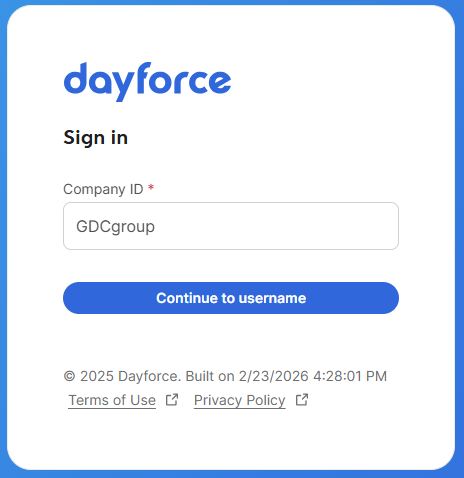
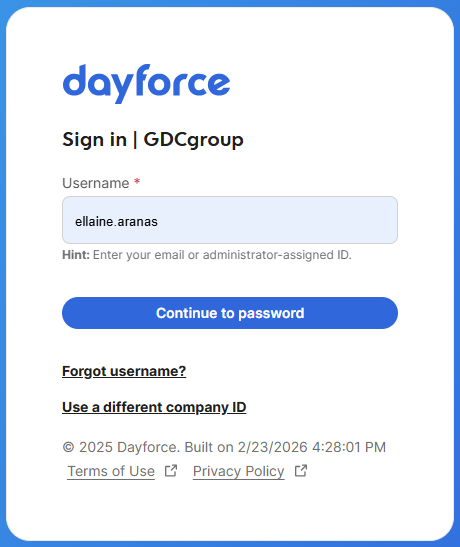
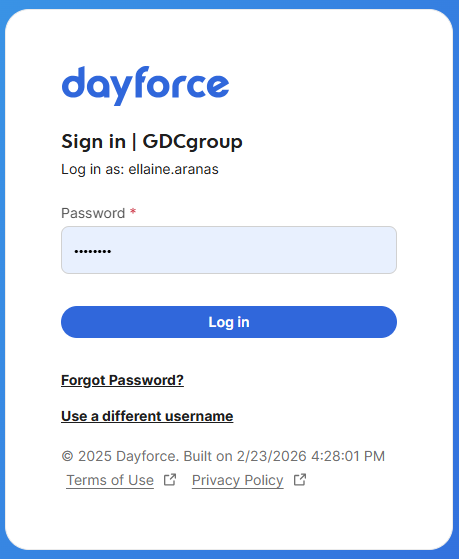
1\. Log in to Dayforce at **[MyDayForce Login](https://www.dayforcehcm.com/mydayforce/login.aspx "Dayforce Website")**

<table border="1" id="bkmrk-company-id%3A-gdcgroup"><colgroup><col></col><col></col><col></col></colgroup><tbody><tr><td>Company ID: GDCgroup

[![image.png](https://docs.goodwindcorp.com/uploads/images/gallery/2026-04/scaled-1680-/Prcimage.png)](https://docs.goodwindcorp.com/uploads/images/gallery/2026-04/Prcimage.png)

</td><td>Username: Firstname.Lastname

[![image.png](https://docs.goodwindcorp.com/uploads/images/gallery/2026-04/scaled-1680-/kXjimage.png)](https://docs.goodwindcorp.com/uploads/images/gallery/2026-04/kXjimage.png)

</td><td>Password:

[![image.png](https://docs.goodwindcorp.com/uploads/images/gallery/2026-04/scaled-1680-/BCRimage.png)](https://docs.goodwindcorp.com/uploads/images/gallery/2026-04/BCRimage.png)

</td></tr></tbody></table>

1. Click the "Time Away List" icon. [![image.png](https://docs.goodwindcorp.com/uploads/images/gallery/2026-04/scaled-1680-/ZSDimage.png)](https://docs.goodwindcorp.com/uploads/images/gallery/2026-04/ZSDimage.png)
2. Click the "Request Time Off" icon. [![image.png](https://docs.goodwindcorp.com/uploads/images/gallery/2026-04/scaled-1680-/M2Uimage.png)](https://docs.goodwindcorp.com/uploads/images/gallery/2026-04/M2Uimage.png)
3. Select Reason, start Date, End date and Type of Request. [![image.png](https://docs.goodwindcorp.com/uploads/images/gallery/2026-04/scaled-1680-/Aw1image.png)](https://docs.goodwindcorp.com/uploads/images/gallery/2026-04/Aw1image.png)
4. Employee can input in the employee comment section the reason or purpose of the leave request and then click "Submit." [![image.png](https://docs.goodwindcorp.com/uploads/images/gallery/2026-04/scaled-1680-/jPBimage.png)](https://docs.goodwindcorp.com/uploads/images/gallery/2026-04/jPBimage.png)
5. Employee will receive an email once leave request has been approved. [![image.png](https://docs.goodwindcorp.com/uploads/images/gallery/2026-04/scaled-1680-/VUximage.png)](https://docs.goodwindcorp.com/uploads/images/gallery/2026-04/VUximage.png)

#### <span style="text-decoration: underline;">**Option 2: Using Phone Device**</span>

1. Click the Dayforce application in the phone.
2. Click the "GDCgroup" icon. [![image.png](https://docs.goodwindcorp.com/uploads/images/gallery/2026-04/scaled-1680-/fqpimage.png)](https://docs.goodwindcorp.com/uploads/images/gallery/2026-04/fqpimage.png)
    
     3. Log in to the account by typing the username and password and then click "Log In."

[![Dayforce 1.png](https://docs.goodwindcorp.com/uploads/images/gallery/2026-04/scaled-1680-/dayforce-1.png)](https://docs.goodwindcorp.com/uploads/images/gallery/2026-04/dayforce-1.png)

4\. Click " Time Away."

[![image.png](https://docs.goodwindcorp.com/uploads/images/gallery/2026-04/scaled-1680-/7Rlimage.png)](https://docs.goodwindcorp.com/uploads/images/gallery/2026-04/7Rlimage.png)

5\. Check Leave balances, If with sufficient balance, click "New Request."

[![image.png](https://docs.goodwindcorp.com/uploads/images/gallery/2026-04/scaled-1680-/eoCimage.png)](https://docs.goodwindcorp.com/uploads/images/gallery/2026-04/eoCimage.png)

6\. Select a reason for the request.

[![image.png](https://docs.goodwindcorp.com/uploads/images/gallery/2026-04/scaled-1680-/Osrimage.png)](https://docs.goodwindcorp.com/uploads/images/gallery/2026-04/Osrimage.png)

7\. Input Duration (Full or Partial), Start Date, End Date and purpose of the request in the comment section then click "Next."

[![image.png](https://docs.goodwindcorp.com/uploads/images/gallery/2026-04/scaled-1680-/rK6image.png)](https://docs.goodwindcorp.com/uploads/images/gallery/2026-04/rK6image.png)

8\. Review the details. Input additional comment if needed then click "Submit."

Note: Remaining Balance if approved will show in the screen.

[![image.png](https://docs.goodwindcorp.com/uploads/images/gallery/2026-04/scaled-1680-/2drimage.png)](https://docs.goodwindcorp.com/uploads/images/gallery/2026-04/2drimage.png)

9\. Approver will receive an email notification.

[![image.png](https://docs.goodwindcorp.com/uploads/images/gallery/2026-04/scaled-1680-/zroimage.png)](https://docs.goodwindcorp.com/uploads/images/gallery/2026-04/zroimage.png)

####